Podcast Audio Repair Online: Clean Noisy Speech Before You Publish
A browser workflow for repairing podcast, interview, and spoken clips with trimming, denoise, voice enhancement, review, and export.
Browser Voice Enhancement
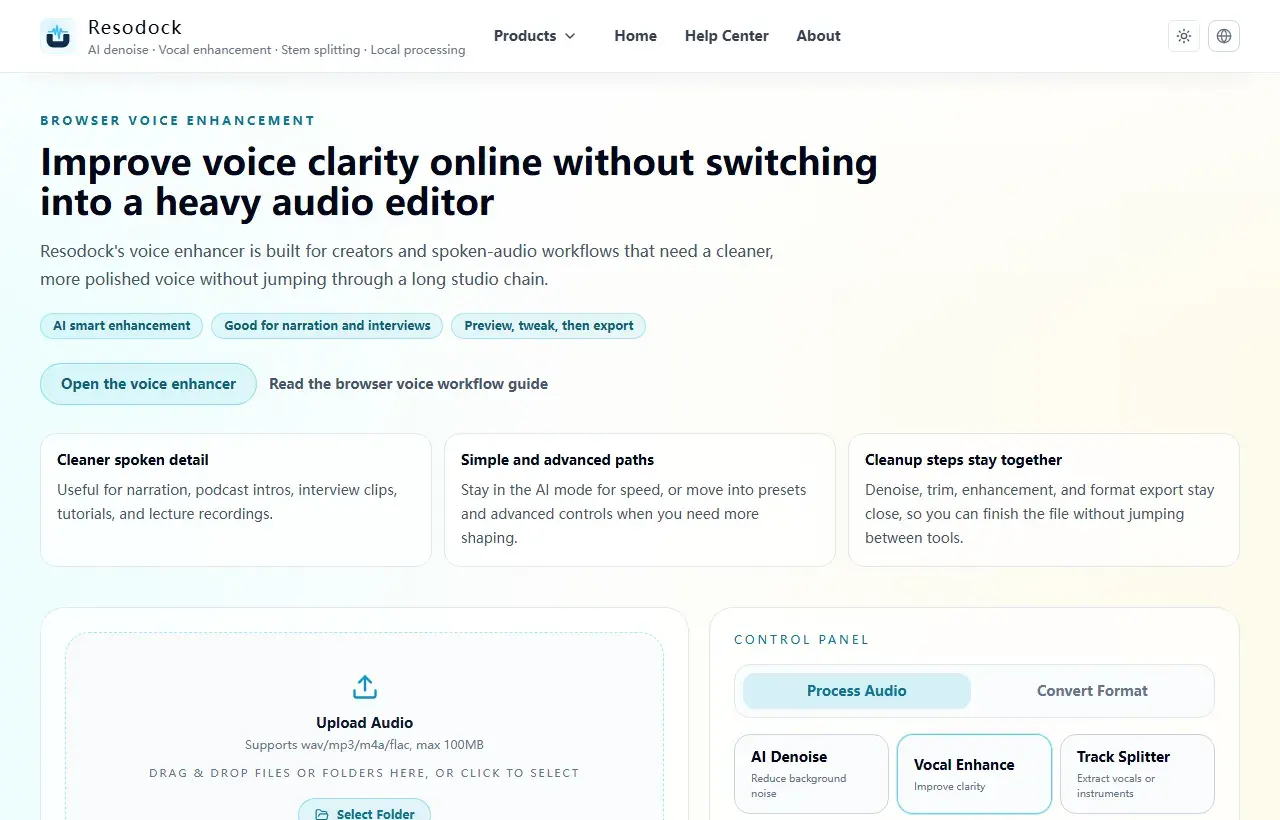
Improve voice clarity online without switching into a heavy audio editor
Enhance voice audio online without uploading files. Improve spoken clarity for podcasts, YouTube narration, interviews, and lecture recordings directly in your browser.
Podcast repair starts with the worst moment
Do not judge the whole episode by the cleanest intro. Find the part with the loudest room noise, the most distant speaker, or the worst volume jump, then test your repair there.
A 30 second sample saves time because it reveals whether the chain is too aggressive before you process the full file.
Next step
Use voice enhancement for clearer speech
When the voice sounds muffled, distant, or uneven, start with voice enhancement. It improves intelligibility; it is not meant to fake a studio recording.
- 1Open the voice enhancer.
- 2Upload or drag in your recording.
- 3Run a short preview first.
- 4If the words become easier to understand, download the result or process the full file.
A practical podcast audio repair chain
Trim long silence or obvious mistakes first. Then use denoise if the background is steady. After that, use voice enhancement lightly to bring speech forward.
If you extracted the audio from a video recording, keep a WAV or high quality source while repairing. Export MP3 only after the sound is ready to share.
Keep the repair natural
The goal is not to remove every breath or make every speaker sound identical. A podcast should still feel like people talking in a real space.
Listen on headphones and a small speaker. Harsh highs, chopped sentence endings, pumping volume, or metallic consonants mean the processing needs to be lighter.
Review before transcript or publishing
If you plan to transcribe the episode, repair can help the speech recognizer, but automatic transcripts are still drafts. Review names, sponsor mentions, prices, dates, and technical terms.
For guest interviews, keep an original copy. If a processed version sounds wrong later, you can return to the source instead of stacking more fixes on top.
Summary
Podcast audio repair online is mostly about order and restraint: trim, denoise when needed, enhance lightly, then review.
Fix the worst short sample first. If that section sounds natural, the full episode is much safer to process.
Related Articles
Voice Enhancement
AI Voice Enhancer Online: Make Speech Clearer in Your Browser
Start with a short voice sample, enhance clarity, compare the result, then export only if the speech still sounds natural.
Voice Enhancement
Voice Enhancer vs Noise Remover: Which One Should You Use First?
Choose denoise for steady background sound, voice enhancement for dull or distant speech, and a short A/B test when the problem is mixed.
Voice Enhancement
AI Audio Enhancer for Video: A Practical Workflow for Clearer Speech
Video audio enhancement works better as a workflow: identify the problem, extract audio, clean noise, lightly enhance speech, then transcribe or subtitle.
FAQ
Should I repair the whole podcast at once?
No. Test the worst 15 to 30 seconds first. If that section works, process the full episode with the same settings.
Should I export podcast repair as MP3 or WAV?
Use WAV while editing if possible. Export MP3 after repair when the file is ready for listening or sharing.
Can repaired audio improve transcription?
Often, yes. Clearer speech can help recognition, but the transcript still needs human review.