AI Voice Enhancer Online: Make Speech Clearer in Your Browser
Use an AI voice enhancer online for podcasts, voice notes, interviews, and narration. Learn when enhancement helps, when denoise should come first, and how to test a short sample before exporting.
Browser Voice Enhancement
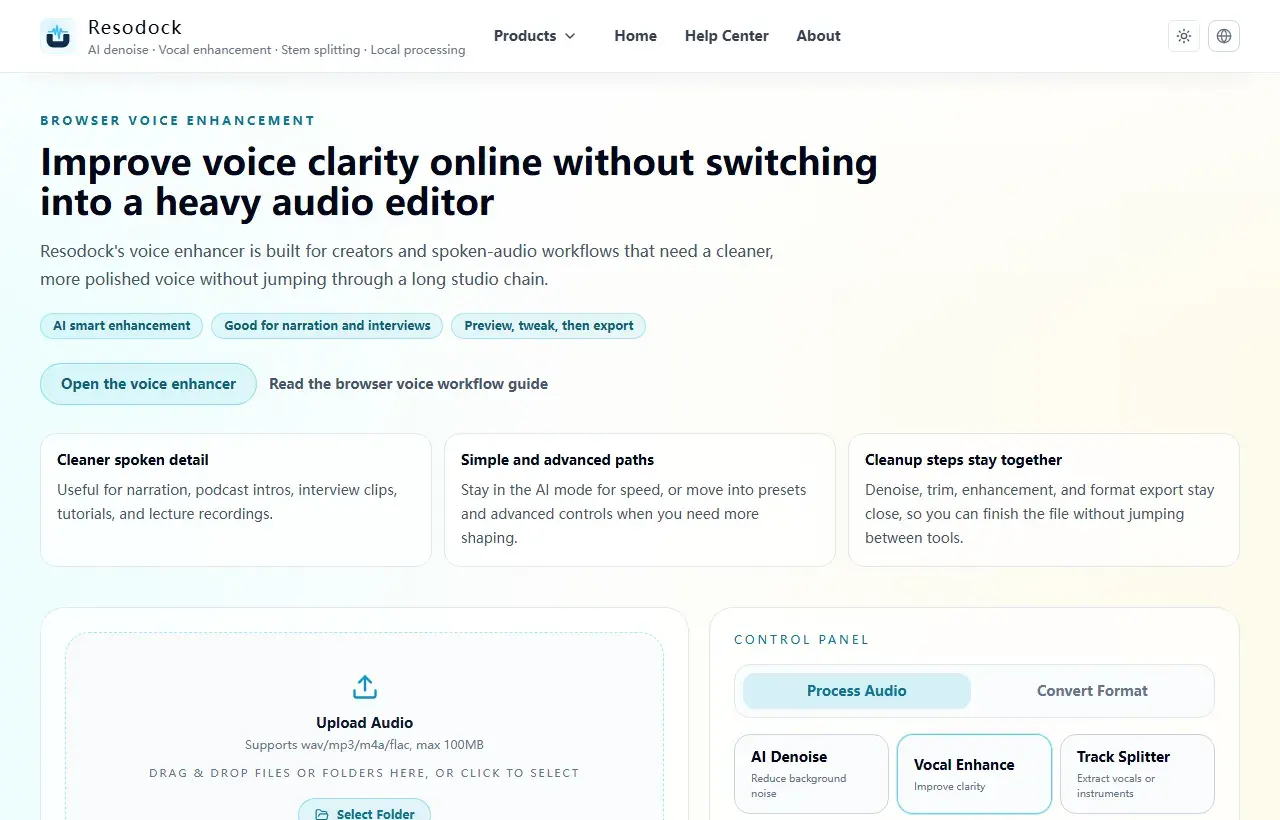
Improve voice clarity online without switching into a heavy audio editor
Enhance voice audio online without uploading files. Improve spoken clarity for podcasts, YouTube narration, interviews, and lecture recordings directly in your browser.
What an AI voice enhancer online is best for
An AI voice enhancer online is useful when speech is understandable but not easy to listen to. The voice may sound dull, distant, uneven, or slightly buried under room tone.
It is a good fit for podcasts, interviews, voice notes, tutorials, lecture recordings, and YouTube narration. If the recording is mostly speech, you can start in the voice enhancer and keep the workflow in the browser.
Next step
Use voice enhancement for clearer speech
When the voice sounds muffled, distant, or uneven, start with voice enhancement. It improves intelligibility; it is not meant to fake a studio recording.
- 1Open the voice enhancer.
- 2Upload or drag in your recording.
- 3Run a short preview first.
- 4If the words become easier to understand, download the result or process the full file.
Enhancement is different from noise removal
Voice enhancement tries to make speech clearer and more present. Noise removal tries to reduce steady background sound such as fans, air conditioning, hum, or light room noise.
If the file has obvious noise, clean a short section first with the noise remover, then enhance the voice lightly. If the recording is already quiet but sounds flat, start with enhancement.
How to use an AI voice enhancer online safely
Upload the file, process only 15 to 30 seconds, then compare before and after. Listen for words, breath, sibilance, and the ends of sentences. A clearer voice is good; a dry or robotic voice means the setting is too strong.
On first use, the browser may need to download model resources or audio processing code. After that, the same device is usually faster because the browser can cache the resources.
When results may be limited
Enhancement cannot fully repair clipped audio, speech recorded very far from the microphone, heavy echo, or a voice covered by music. It can improve clarity, but it cannot create missing detail that was never captured.
For important content, treat the enhanced file as a draft. Review names, numbers, dates, legal or medical statements, and technical terms before publishing or sharing.
Summary
AI voice enhancer online works best when the voice is present but needs more clarity. It is especially useful for spoken audio that is almost usable already.
Test a short sample, choose enhancement or denoise in the right order, and export only after the voice still sounds natural.
Related Articles
Voice Enhancement
Voice Enhancer vs Noise Remover: Which One Should You Use First?
Choose denoise for steady background sound, voice enhancement for dull or distant speech, and a short A/B test when the problem is mixed.
Voice Enhancement
Podcast Audio Repair Online: Clean Noisy Speech Before You Publish
Repair the worst 30 seconds first, then apply the same restrained chain to the full podcast or interview file.
Voice Enhancement
AI Audio Enhancer for Video: A Practical Workflow for Clearer Speech
Video audio enhancement works better as a workflow: identify the problem, extract audio, clean noise, lightly enhance speech, then transcribe or subtitle.
FAQ
Is an AI voice enhancer online the same as a noise remover?
No. Voice enhancement makes speech clearer and more present. Noise removal lowers background sound. Many recordings need both, but the order matters.
Can I use it for podcasts and interviews?
Yes. It is a good match for spoken audio such as podcasts, interviews, narration, voice notes, lessons, and calls.
Will it make bad audio sound like a studio recording?
Not always. It can improve clarity, but clipped, very distant, or music-covered speech still has limits.
Do I need to review the result?
Yes. Listen before export, especially for names, numbers, dates, and any legal, medical, financial, or technical content.