How To Make Voice Sound Professional For YouTube
A repeatable voice-enhancement workflow for creators who need cleaner, more professional narration.
Browser Voice Enhancement
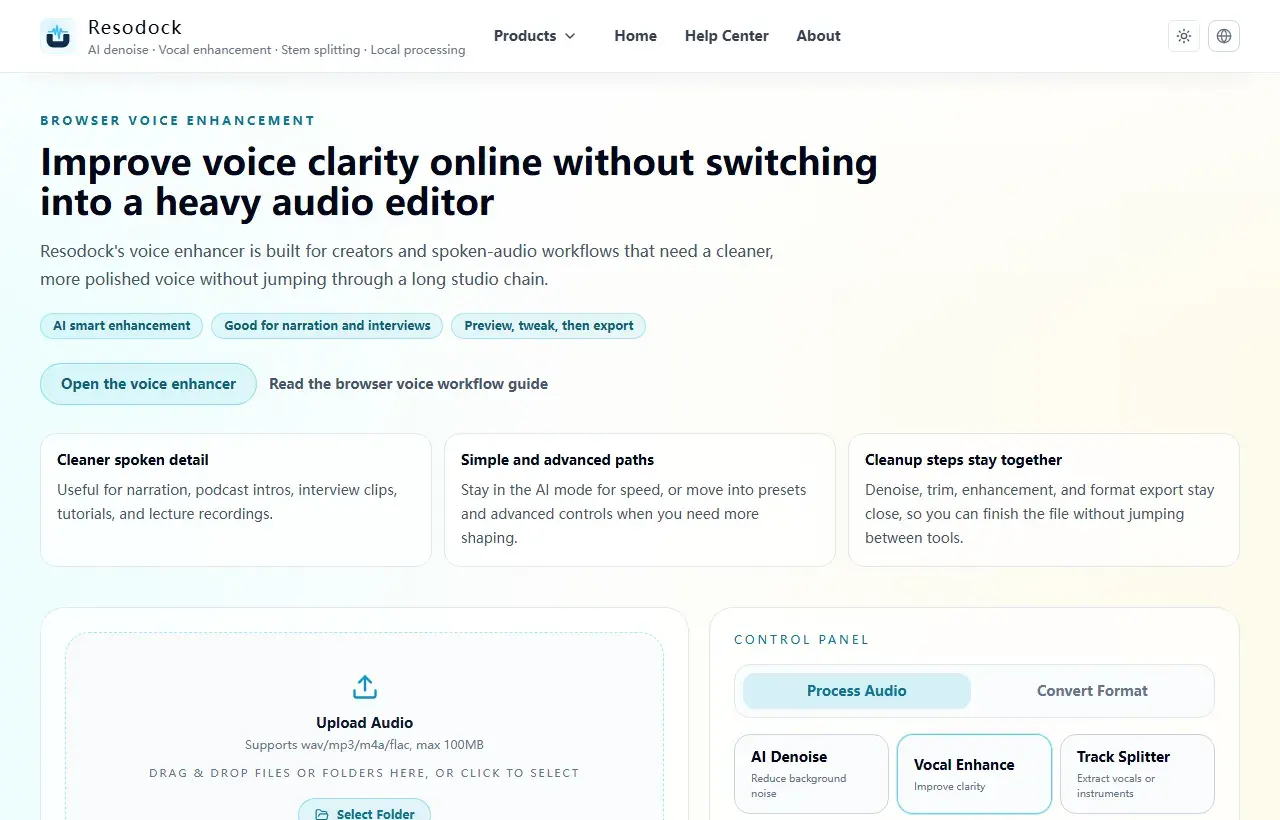
Improve voice clarity online without switching into a heavy audio editor
Enhance voice audio online without uploading files. Improve spoken clarity for podcasts, YouTube narration, interviews, and lecture recordings directly in your browser.
A reliable pre-publish workflow
A stable sequence is denoise, light enhancement, then loudness normalization for most narration projects.
Use short A/B previews at each step so clarity improves without sacrificing natural voice tone.
Next step
Use voice enhancement for clearer speech
When the voice sounds muffled, distant, or uneven, start with voice enhancement. It improves intelligibility; it is not meant to fake a studio recording.
- 1Open the voice enhancer.
- 2Upload or drag in your recording.
- 3Run a short preview first.
- 4If the words become easier to understand, download the result or process the full file.
YouTube-specific quality checks
Avoid overly bright highs and heavy compression, which can become harsh on mobile playback.
Before final export, review the first and last 10 seconds to verify gate behavior and smooth tail transitions.
Summary
Voice enhancement is useful when speech sounds dull, distant, or uneven in volume. The goal is clearer speech, not an overprocessed recording.
If noise is obvious, denoise first and enhance lightly after that. If the noise is mild, enhance a short sample first and export only when it still sounds natural.
Related Articles
Voice Enhancement
AI Voice Enhancer Online: Make Speech Clearer in Your Browser
Start with a short voice sample, enhance clarity, compare the result, then export only if the speech still sounds natural.
Voice Enhancement
Voice Enhancer vs Noise Remover: Which One Should You Use First?
Choose denoise for steady background sound, voice enhancement for dull or distant speech, and a short A/B test when the problem is mixed.
Voice Enhancement
Podcast Audio Repair Online: Clean Noisy Speech Before You Publish
Repair the worst 30 seconds first, then apply the same restrained chain to the full podcast or interview file.
FAQ
Does professional narration always mean louder audio?
No. Professional quality is about clarity, consistency, and comfort, not maximum loudness.
What if voice sounds too dry after processing?
That usually indicates over-processing. Reduce enhancement/compression intensity and keep more natural dynamics.