Why Kokoro-82M Online Speech Can Be Slow: Models, Cache, and Progress
The first time you use Kokoro-82M online TTS, the browser may download a model. This article explains models, cache, and progress bars in plain language.
Browser Text To Speech
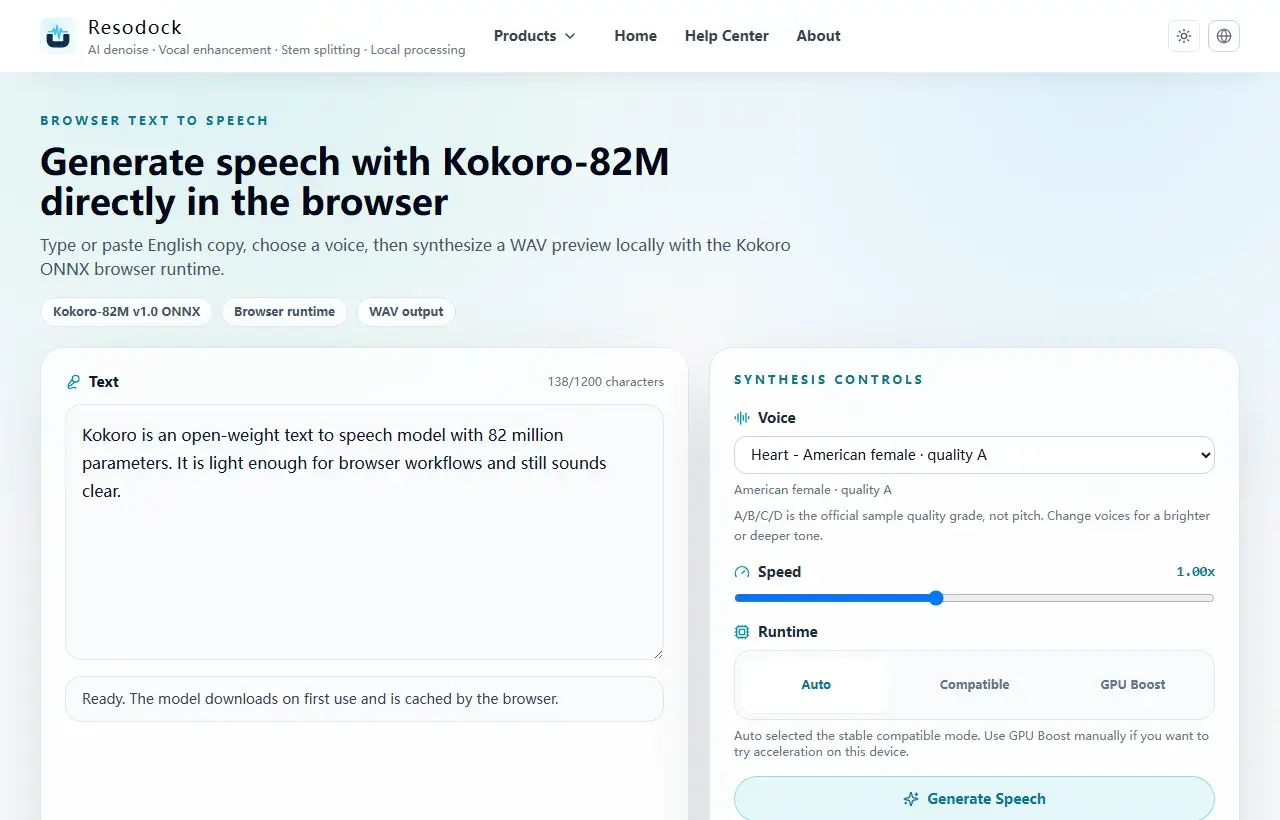
Open the Kokoro-82M browser text-to-speech workstation
Try Kokoro-82M locally in the browser, choose a voice, preview generated speech, and download a WAV file.
Why the Model Downloads the First Time
Kokoro-82M is lightweight for a speech model, but it still needs model files. The first time you open an online TTS tool, the browser may need to download those files before it can speak.
That wait does not mean the page is broken. It is more like opening an offline map app for the first time: the map package has to arrive before the app becomes fast and useful.
Generate a preview
Try a short text-to-speech sample first
When the article is about TTS, voices, or narration quality, generate a short sample first. Listen for tone, pauses, and clarity before producing longer audio.
- 1Open the text-to-speech tool.
- 2Enter a short passage.
- 3Choose a voice and generate a preview.
- 4Download the WAV result when it sounds right.
Why the Second Try Is Usually Faster
After the model downloads, the browser usually keeps it in cache. Cache simply means temporary storage, so the next speech generation does not need to download the same model again.
That is why the first run can feel slow while the next one feels much faster. If you clear browser data, use private browsing, or switch devices, the tool may need to download again.
Why Mobile Can Look Frozen
Generating speech is not the same as playing an audio file. The browser has to calculate the voice. Phones have less power than laptops, so long text or heavier voices can make buttons and spinners pause for a moment.
A good online TTS page should still explain what is happening. It should show whether it is downloading, preparing the voice, or generating speech, so the wait feels understandable.
GPU Acceleration Is Not Always Better
Some browsers can use GPU acceleration, which sounds powerful. But devices and drivers vary a lot. Sometimes GPU mode is faster; sometimes it can fail or produce strange results.
If you simply want a stable voice, compatible mode is usually the safer choice. Try acceleration when you want more speed. In short: first use may download the model, later runs use cache, and clear progress makes the wait feel much better.
Summary
A text-to-speech tool is useful when the voice sounds natural, the voice options fit your content, generation is responsive, and browser compatibility is clear.
Test a short passage first. If the voice, pauses, and speed work well, generate the full audio and download it.
Related Articles
Text to Speech
What Is Kokoro-82M? Why It Fits Browser Text to Speech
Kokoro-82M is not a giant cloud voice system. It is a smaller open speech model that fits short text previews, English narration, and browser-based local generation.
Text to Speech
Free AI Text to Speech Online: How to Choose a Browser TTS Tool
Free TTS is not only about generating audio. Privacy, cache, export format, mobile responsiveness, and repeated previews matter just as much.
Text to Speech
Best Open Source TTS Models: Kokoro, Dia, Index TTS, and Browser Use Cases
Open source TTS models turn text into speech. Kokoro is lighter, while Dia TTS and Index TTS have their own strengths. Focus on sound, speed, language, and ease of use.
FAQ
Does Kokoro-82M download every time?
Usually no. After the first download, the browser can cache the model, so later runs are much faster.
Is a short pause during generation normal?
For short text it should be brief. Phones or long text can pause for a moment while the browser creates the voice.
Should I always turn on GPU acceleration?
Not always. Compatible mode is steadier; GPU acceleration is worth trying when you want more speed and your device handles it well.