Free AI Text to Speech Online: How to Choose a Browser TTS Tool
Want to turn text into listenable speech quickly? This guide helps you choose a free browser TTS tool that is practical, stable, and easy to preview.
Browser Text To Speech
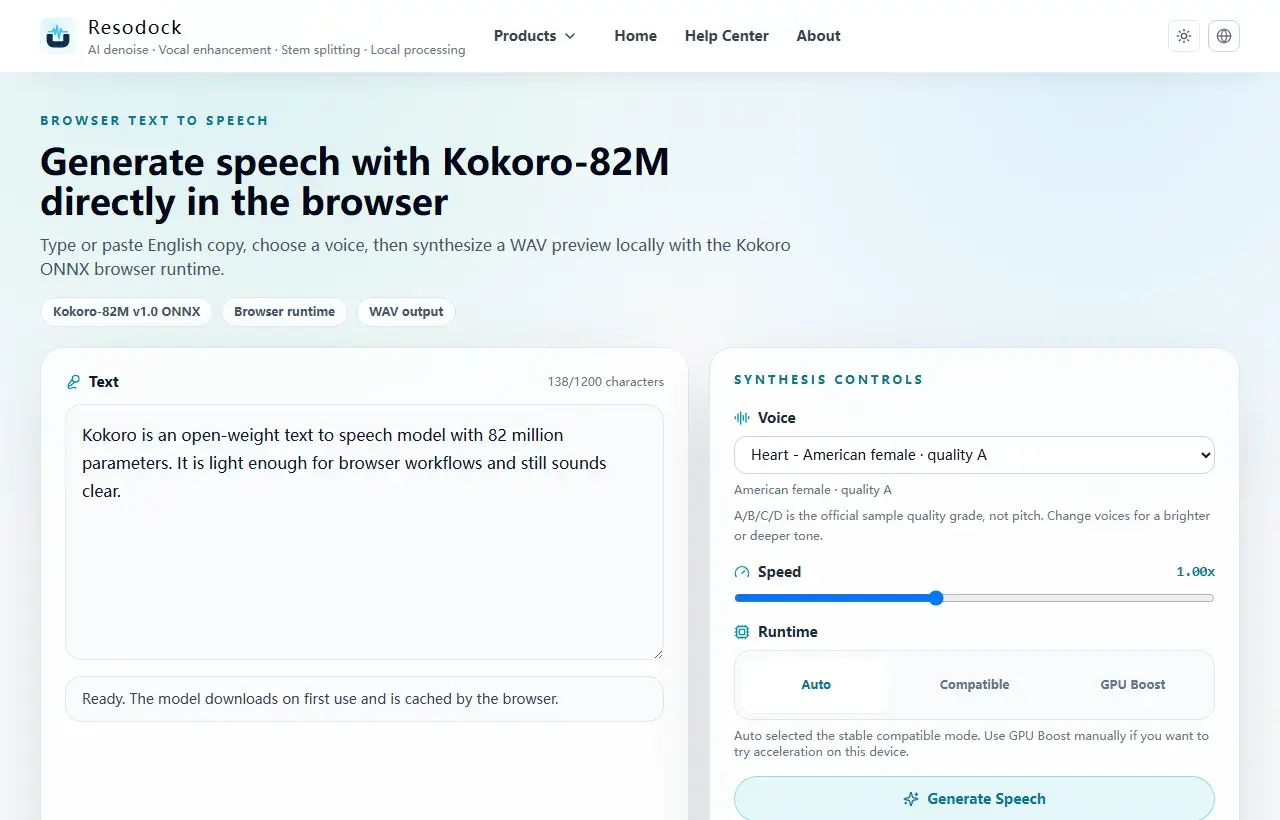
Open the Kokoro-82M browser text-to-speech workstation
Try Kokoro-82M locally in the browser, choose a voice, preview generated speech, and download a WAV file.
Start with a quick preview
Most people opening a free text-to-speech tool are not trying to study model details. They want to hear how a short script, product line, or narration sentence sounds when spoken aloud.
A good free TTS page should make that preview simple: type or paste text, choose a voice, generate, play it, and download a common format such as WAV. Early signup walls or heavy setup steps get in the way.
Generate a preview
Try a short text-to-speech sample first
When the article is about TTS, voices, or narration quality, generate a short sample first. Listen for tone, pauses, and clarity before producing longer audio.
- 1Open the text-to-speech tool.
- 2Enter a short passage.
- 3Choose a voice and generate a preview.
- 4Download the WAV result when it sounds right.
Why browser-local TTS is useful
Browser-local TTS is useful for scripts, narration drafts, class notes, and private text because the words can stay on your device as much as possible. For privacy-sensitive users, that matters more than decorative features.
If the model can use browser cache, later generations become much faster after the first run. Rewriting a sentence, changing speed, and comparing voices starts to feel like a local tool instead of a cloud queue.
A quick checklist for free TTS tools
Check four things first: instant preview, clear export format, responsive mobile UI during generation, and visible progress during the first model download.
For short English narration, Resodock's Kokoro-82M text-to-speech tool is a direct starting point. For long-form content, generate in chunks and review naturalness before stitching the pieces together.
Summary: Useful Matters More Than Fancy
Most people do not need to read model papers before choosing a free TTS tool. Listen first, then check speed, privacy, export format, and mobile smoothness.
If you only need a quick English narration or script preview, a lightweight browser TTS such as Kokoro-82M is a good first try. The value is that you can open it, listen, and download without extra fuss.
Related Articles
Text to Speech
What Is Kokoro-82M? Why It Fits Browser Text to Speech
Kokoro-82M is not a giant cloud voice system. It is a smaller open speech model that fits short text previews, English narration, and browser-based local generation.
Text to Speech
Why Kokoro-82M Online Speech Can Be Slow: Models, Cache, and Progress
Kokoro-82M may download a model on first use, then feel faster later. Knowing what cache and progress mean makes the wait less confusing.
Text to Speech
Best Open Source TTS Models: Kokoro, Dia, Index TTS, and Browser Use Cases
Open source TTS models turn text into speech. Kokoro is lighter, while Dia TTS and Index TTS have their own strengths. Focus on sound, speed, language, and ease of use.
FAQ
Can free AI text to speech be used commercially?
It depends on the tool and model license. Check terms of service, model license, and voice permissions before publishing.
Why is browser TTS slow the first time?
The first run usually downloads the model and initializes the inference engine. Later runs are faster when cache works.
Should free TTS export MP3 or WAV?
Use WAV for preview and editing quality. Use MP3 when small file size is more important for sharing.