Best Free AI Text to Speech Tools: What To Check Before You Generate Audio
Choosing a free AI text-to-speech tool is not just about price. Check voice quality, MP3 and WAV export, long text handling, first model downloads, privacy, and review steps.
Browser Text To Speech
Open the Kokoro-82M browser text-to-speech workstation
Try Kokoro-82M locally in the browser, choose a voice, preview generated speech, and download a WAV file.
Best Free AI Text to Speech Tools Are Not Just Free
People search for best free AI text to speech tools because they want to turn scripts, narration lines, or short copy into downloadable audio quickly. Price matters, but the real test is voice quality, export options, and whether longer text is handled cleanly.
A tool can look attractive and still be frustrating if it only plays a preview, hides MP3 or WAV export, or does not explain first-run model downloads and privacy.
Generate a preview
Try a short text-to-speech sample first
When the article is about TTS, voices, or narration quality, generate a short sample first. Listen for tone, pauses, and clarity before producing longer audio.
- 1Open the text-to-speech tool.
- 2Enter a short passage.
- 3Choose a voice and generate a preview.
- 4Download the WAV result when it sounds right.
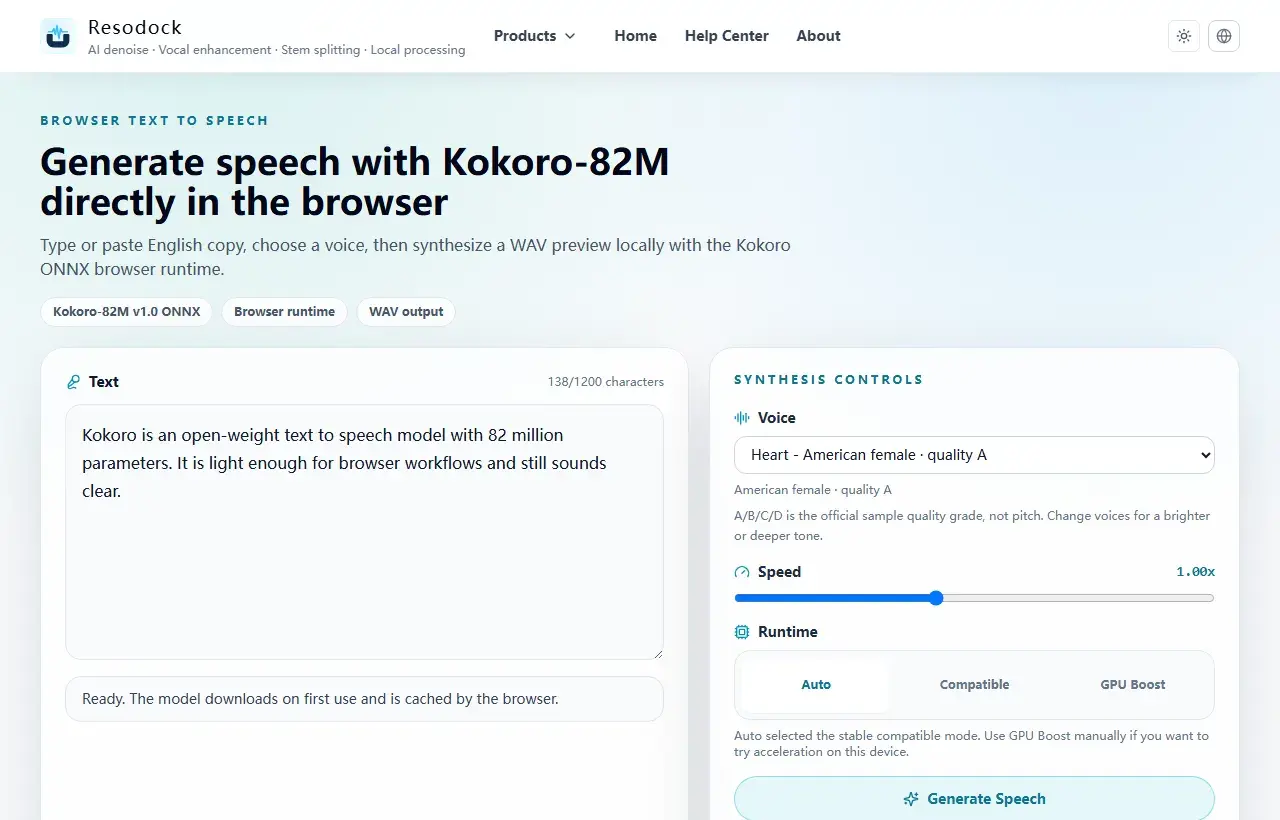
Listen First, Then Check MP3 and WAV Export
Test the same one or two sentences with different voices. Listen for tone, pauses, numbers, acronyms, and whether the voice stays clear instead of only trusting an AI voice label.
Use MP3 for easy sharing and WAV when the audio will go into another editor. Resodock browser TTS can generate speech and export WAV or MP3, which makes it useful for narration drafts and short voice previews.
Long Text Needs Segments, Not One Huge Paste
Long text is easier to manage when the tool splits it into paragraphs or sentence groups and adds natural pauses between sections.
If a long text mode exists, test a short section first. Automatic voice generation still needs human listening, especially for brand names, people names, numbers, dates, and foreign words.
First Model Downloads and Privacy Should Be Clear
Browser-based AI TTS may download model files on first use. After the files are cached on the same device, later generations are usually faster.
If your script includes private drafts, internal notes, or course material, local browser generation can reduce upload concerns. Check whether the tool says what happens to your text and generated audio.
Summary
When choosing a free AI text-to-speech tool, check the sound, export formats, long text workflow, first-run downloads, device performance, and privacy notes.
The safest workflow is simple: generate a short sample, confirm the voice sounds natural, export MP3 or WAV, and listen again before publishing.
Related Articles
Text to Speech
What Is Kokoro-82M? Why It Fits Browser Text to Speech
Kokoro-82M is not a giant cloud voice system. It is a smaller open speech model that fits short text previews, English narration, and browser-based local generation.
Text to Speech
Why Kokoro-82M Online Speech Can Be Slow: Models, Cache, and Progress
Kokoro-82M may download a model on first use, then feel faster later. Knowing what cache and progress mean makes the wait less confusing.
Text to Speech
Free AI Text to Speech Online: How to Choose a Browser TTS Tool
Free TTS is not only about generating audio. Privacy, cache, export format, mobile responsiveness, and repeated previews matter just as much.
FAQ
Are free AI text-to-speech tools really free?
Some are free but limit characters, export formats, or queue time. Check whether you can download the MP3 or WAV file you need.
Why is the first voice generation slower?
Browser AI TTS may need to download model files first. After download and initialization, later runs on the same device are usually faster.
Can I publish generated speech directly?
Review it first. Names, numbers, dates, brand terms, foreign words, and pauses should be checked by a human.