How To Batch Process An Entire Folder Of Audio Files In The Browser
This guide explains batch denoise, batch enhancement, batch conversion, and batch stem separation in one workflow.
Browser Audio Workstation
Open the browser workstation for batch audio processing
Choose several files or a whole folder, apply the same task, then preview and download the results as a ZIP package.
When to use batch mode
If you need to process many recordings or an entire folder at once, batch mode is much faster than handling files one by one and keeps output consistency higher.
In batch workflows, prioritize folder upload, file counts, export packaging, and output format setup before spending time on preview or trimming details.
Back to the workstation
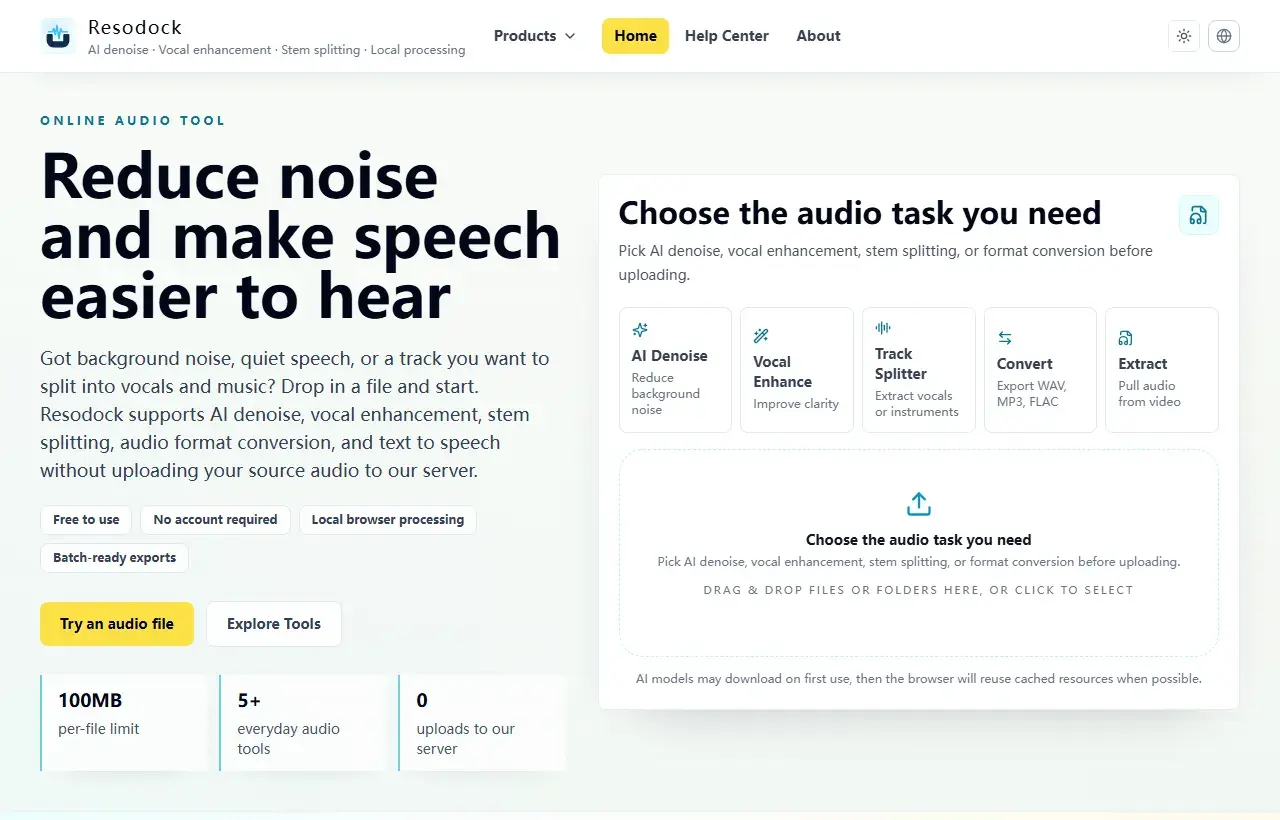
Choose a task, then upload the file
When an article mentions several workflows, the main workstation is the easiest place to start. Pick a task, upload the file, then preview and download the result.
- 1Open the Resodock workstation.
- 2Choose AI denoise, voice enhancement, stem separation, or format conversion.
- 3Upload the file and start processing.
- 4Preview the result and download it when ready.
Check these settings before starting
Explain clearly that dropping a folder switches the app into batch mode, only audio files under 100MB are processed, ZIP export is available for standard workflows, and stem separation creates nested ZIP packages.
Confirming these rules before you start reduces mid-process failures and repetitive rework.
Common batch task templates
Common templates include batch podcast denoise, batch lecture enhancement, batch song separation, and batch WAV-to-MP3 conversion.
Save preset templates by task so you can reuse them directly for similar files next time.
Summary
Batch processing is risky when you process everything before checking the settings. Test a few files first and confirm quality, naming, export format, and ZIP structure.
Once the rules look right, upload the full folder for similar denoise, enhancement, conversion, or separation tasks.
Related Articles
Batch Workflow
Batch Audio Normalization Across Multiple Files
The goal is not maximum loudness, but consistent listening experience across an entire set.
Text to Speech
What Is Kokoro-82M? Why It Fits Browser Text to Speech
Kokoro-82M is not a giant cloud voice system. It is a smaller open speech model that fits short text previews, English narration, and browser-based local generation.
Text to Speech
Why Kokoro-82M Online Speech Can Be Slow: Models, Cache, and Progress
Kokoro-82M may download a model on first use, then feel faster later. Knowing what cache and progress mean makes the wait less confusing.
FAQ
What needs are best suited for batch processing?
It works best when many similar files need consistent processing, such as full podcast episodes, lecture recordings, or media library cleanup.
Do I need to understand ZIP export structure?
Yes, especially for stem separation. Export structure is one of the first questions serious users care about.