Speech to Text PDF: How to Turn Audio or Video Into a PDF Transcript
Need a PDF transcript from a meeting, interview, class, or video? Learn how to transcribe, edit, and save the result as PDF from the browser print dialog.
Speech to Text PDF
Transcribe speech or video and save it as PDF
Upload audio or video, edit the transcript, then save it as PDF from the browser print dialog. TXT, SRT, and VTT still work.
When speech to text PDF is useful
A PDF transcript is handy when you need to share or archive the contents of a meeting, interview, class recording, lecture, or video. It is easier to pass around than a raw text file, especially when the reader only needs the cleaned transcript.
The practical workflow is not magic audio-to-PDF conversion. It is audio or video to editable text first, then PDF after review.
Create a PDF transcript
Try a short clip in the speech to text PDF tool
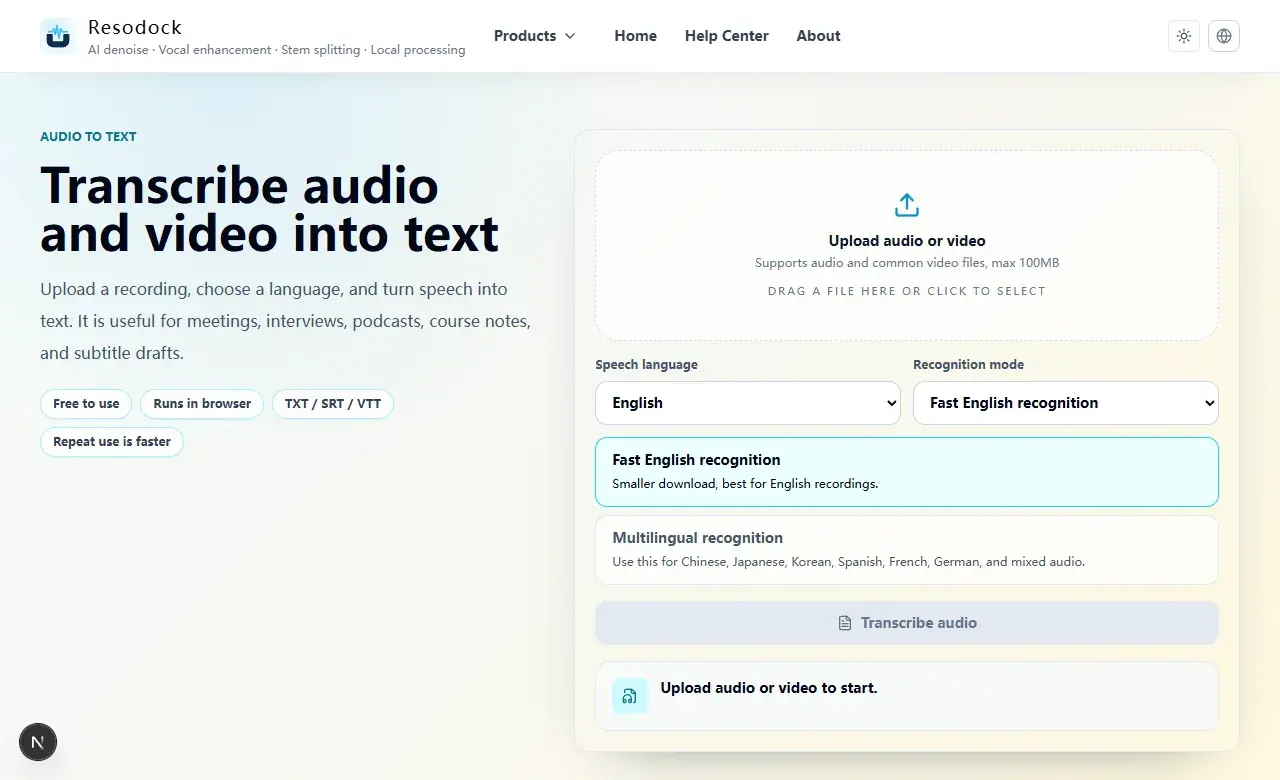
Upload 15 to 30 seconds first. Check the language and transcript quality, edit the text box, then use Print / Save PDF.
- 1Open the speech to text PDF tool.
- 2Upload audio or video and choose the recognition language.
- 3After transcription, edit spelling, paragraph breaks, names, and numbers in the text box.
- 4Click Print / Save PDF and choose Save as PDF in the browser print dialog.
Why editing comes before the PDF
Automatic transcription can miss names, company terms, numbers, dates, amounts, and technical language. Once you send a PDF, people tend to treat it like a finished document, so the text should be checked before export.
That is why browser print-to-PDF works well here. The printable page uses the edited text in the transcript box, not just the first automatic draft.
How to save audio to text as PDF
Open the speech to text PDF page, upload audio or video, choose the recognition language, and start transcription. When the text appears, read through it and fix paragraph breaks, spelling, names, and numbers.
Then click Print / Save PDF. Your browser opens the print dialog, where you can choose Save as PDF. This avoids extra PDF font dependencies and lets the browser use system fonts for Chinese, Japanese, Korean, and other languages.
PDF, TXT, SRT, or VTT
Use PDF for sharing and archiving. Use TXT if you want to keep editing or paste the transcript into another document. Use SRT or VTT when you are preparing subtitles.
For meeting notes, PDF plus a saved TXT copy is often the practical pair. For video publishing, SRT or VTT is still the better export.
What to check before export
Review names, company names, product names, dates, amounts, IDs, technical terms, and legal, medical, or financial content. Overlapping speakers, strong accents, background music, and distant audio all increase mistakes.
For long files, test 15 to 30 seconds first. If the language choice and audio quality look right, process the full recording or video.
Summary
Speech to text PDF is useful when you want a cleaned transcript that is easy to share. It works well for meetings, interviews, classes, and video notes.
Treat the automatic transcript as a draft. Edit it first, then print or save it as PDF. Keep SRT or VTT for subtitle work.
Related Articles
Audio to Text
Audio to Text Online: A Simple Guide to Turning Recordings Into Text
Audio to text is not magic, but it is a fast way to turn recordings into editable drafts. Test a short clip, then export TXT, SRT, or VTT.
Audio to Text
How to Transcribe Audio Online for Meetings, Interviews, and Podcasts
Before you transcribe a full recording, test 30 seconds. Check language and clarity, then export text or subtitles.
Audio to Text
Audio Transcription AI for Meeting Notes: What It Can and Cannot Do
AI transcription is great for creating a meeting draft. You still need to verify decisions, tasks, names, numbers, and dates.
FAQ
Does Resodock download a PDF directly?
This version uses the browser print dialog. Click Print / Save PDF, then choose Save as PDF in your browser.
Will Chinese, Japanese, and Korean text work?
Yes. The printable page relies on browser and system fonts, which is usually safer for multilingual transcript text.
Does the PDF use my edited transcript?
Yes. It uses the current text in the transcript box, so edit spelling, paragraph breaks, and important details first.
Can I still export TXT, SRT, or VTT?
Yes. PDF is added beside the existing exports. TXT remains useful for editing, while SRT and VTT are better for subtitle drafts.