Audio Transcription AI for Meeting Notes: What It Can and Cannot Do
Audio transcription AI can turn meeting recordings into editable drafts, but it is not the final meeting note. Here is how to use it, review it, and avoid common mistakes.
Audio Transcription AI
Use audio transcription AI to draft notes
Turn long recordings into editable drafts, then review names, numbers, terms, and timestamps.
AI transcription is best for the first draft
The hard part of a meeting is often not the meeting itself. It is the cleanup afterward. Audio transcription AI helps by turning the recording into editable text so you do not start from a blank page.
It is not the final meeting note. You still decide what became an action item, who owns it, and when it is due. AI gives you the raw draft; you make it useful.
Try it now
Run a short test in the audio to text tool
Automatic transcription works best when you test a sample first. Upload 15 to 30 seconds, check the language and clarity, then process the full file.
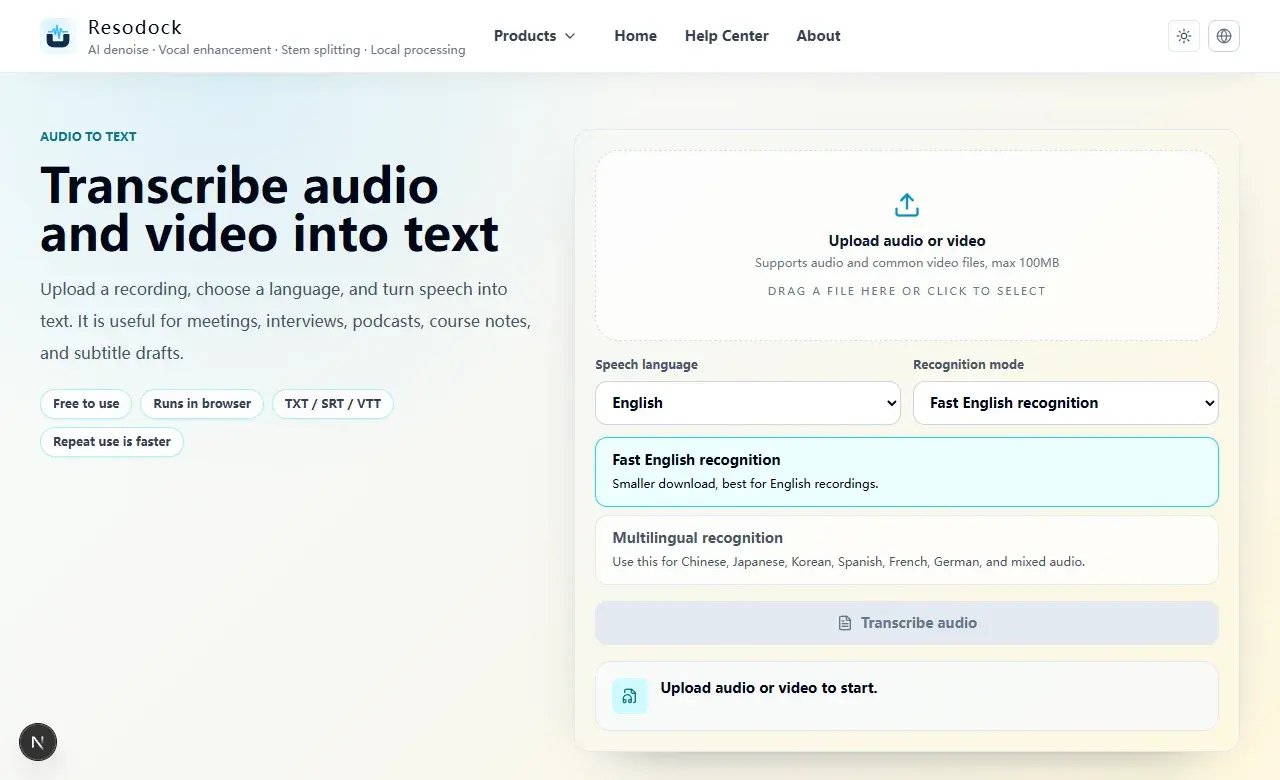
- 1Open the matching audio to text page.
- 2Click the upload area or drag in an audio or video file.
- 3Choose the speech language and recognition mode, then start transcription.
- 4Review the transcript, then copy text or download TXT, SRT, or VTT.
Check three things before transcribing a meeting
First, listen for speech clarity. If people sound far away, try a short voice enhancement test. Second, listen for noise. Air conditioning, fans, and keyboard clicks can make transcription less reliable, so denoise a sample when needed.
Third, check whether people talk over each other. Automatic transcription can recognize words, but it may not reliably separate speakers. For important meetings, add speaker names manually during review.
How to use audio transcription AI in Resodock
Open the audio transcription AI page, upload the meeting audio or video, and choose the speech language. Start with 15 to 30 seconds. If the text is readable, process the full meeting.
After transcription, do not only skim the full text. Search for keywords like decision, next week, budget, owner, or deadline. Then organize the draft into decisions, action items, and open questions.
What you should always review manually
Names, company names, product terms, amounts, dates, times, and legal commitments should be checked by listening again. AI can confuse similar sounds or miss quieter words in the background.
If the notes will be sent to a client or team, treat the transcript as a draft. Remove filler words, repeated sentences, and unclear fragments before sharing.
Summary
Audio transcription AI can reduce the time it takes to create meeting notes. It turns speech into editable text; you turn that text into decisions, tasks, and clean summaries.
The best flow is simple: test a short sample, denoise or enhance if needed, transcribe the full file, then review names, numbers, dates, and action items.
Related Articles
Audio to Text
Audio to Text Online: A Simple Guide to Turning Recordings Into Text
Audio to text is not magic, but it is a fast way to turn recordings into editable drafts. Test a short clip, then export TXT, SRT, or VTT.
Audio to Text
How to Transcribe Audio Online for Meetings, Interviews, and Podcasts
Before you transcribe a full recording, test 30 seconds. Check language and clarity, then export text or subtitles.
Audio to Text
Whisper Audio to Text Online: A Practical Browser Transcription Guide
Whisper online audio to text is useful for turning meetings, interviews, podcasts, or classes into editable drafts. Test a short clip before processing the full file.
FAQ
Can AI transcription create final meeting notes automatically?
It can create a text draft, but final notes still need structure, action-item review, and manual checks.
Can it identify each speaker?
The tool focuses on speech recognition, not reliable speaker labeling. Add speaker names manually for important meetings.
What if the meeting audio is noisy?
Try denoising a short sample first and compare the transcript. If the text improves, process the full recording.