Audio to Text Online: A Simple Guide to Turning Recordings Into Text
Need to turn meetings, interviews, classes, or video dialogue into text? This guide explains how audio to text works, when it helps, and how to use it without overcomplicating the process.
Audio to Text
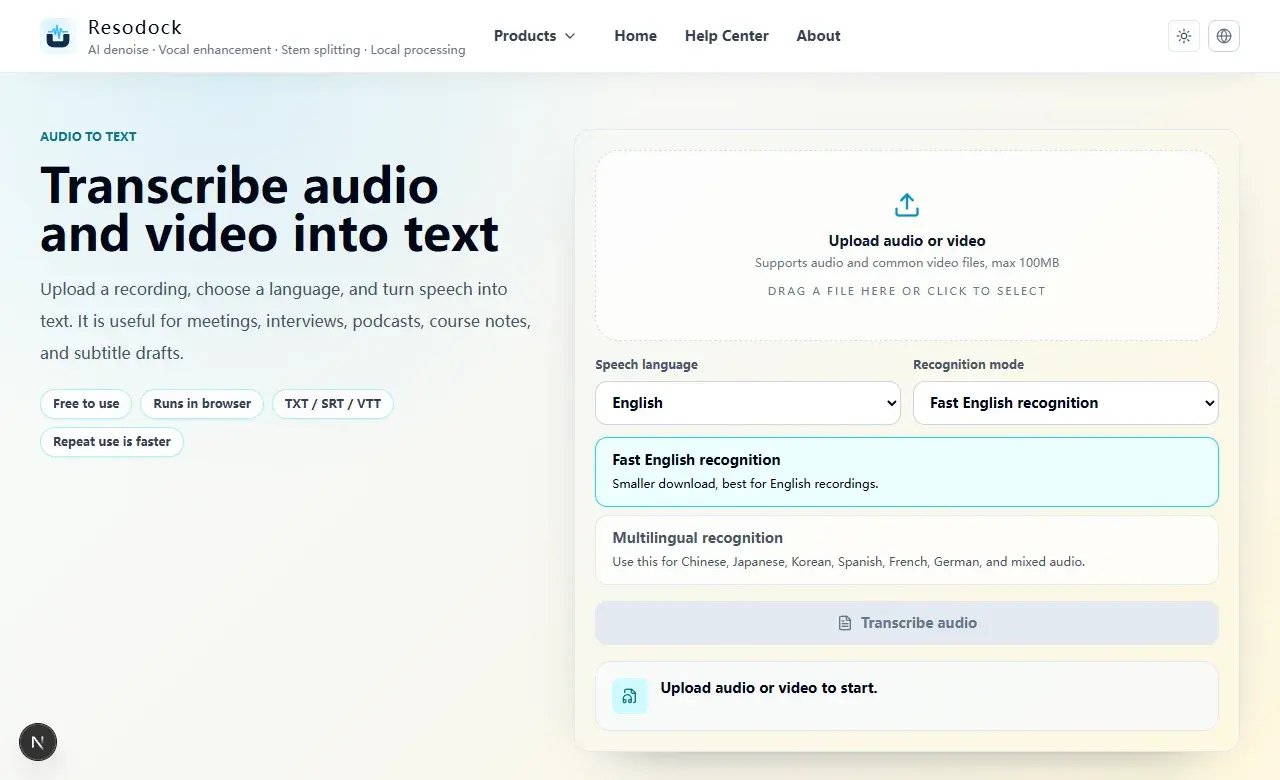
Turn audio and video speech into text
Upload audio or video, choose the speech language, then copy the transcript or download TXT, SRT, or VTT.
What audio to text is actually good for
Most people search for audio to text because they do not want to replay the same recording again and again. Meeting notes, interview highlights, class recordings, podcast drafts, and video dialogue can all start as a transcript.
The main benefit is speed. Automatic transcription gives you an editable draft that you can search, copy, trim, and correct. It may not be perfect on the first pass, but it turns a long recording into something you can work with. You can try a short file in the audio to text tool.
Try it now
Run a short test in the audio to text tool
Automatic transcription works best when you test a sample first. Upload 15 to 30 seconds, check the language and clarity, then process the full file.
- 1Open the matching audio to text page.
- 2Click the upload area or drag in an audio or video file.
- 3Choose the speech language and recognition mode, then start transcription.
- 4Review the transcript, then copy text or download TXT, SRT, or VTT.
When audio to text works well
Clear speech, steady volume, and low background noise usually give better results. One speaker is easier than several people talking over each other. Common words are easier than names, product terms, acronyms, and technical language.
If the recording has air conditioner noise, keyboard clicks, or a distant voice, test a short denoise pass first and compare the transcript. Do not start with a full one-hour file. A 15 to 30 second sample tells you much more, much faster.
How to convert audio to text online
Open the tool, click the upload area, or drag an audio or video file into the page. After the file is ready, choose the speech language and start transcription.
When the transcript appears, read it before exporting. Use TXT for notes and SRT or VTT for subtitle drafts. Names, dates, numbers, and important decisions should always be checked manually.
Limits worth knowing before you start
The first run may download recognition files into the browser. After that, repeat use on the same device is usually faster. Long audio, video files, and mobile devices can take more time.
Automatic transcription is not a promise of perfect accuracy, especially for legal, medical, or contract material. Treat it as a draft: get the words on the page, then review the parts that matter.
Summary
Audio to text is best when you need a fast editable draft from a recording. It saves replay time and makes it easier to search, summarize, and prepare subtitle files.
Start small: upload a short sample, choose the language, transcribe, review, and export TXT, SRT, or VTT. If the sample looks good, process the full recording.
Related Articles
Audio to Text
How to Transcribe Audio Online for Meetings, Interviews, and Podcasts
Before you transcribe a full recording, test 30 seconds. Check language and clarity, then export text or subtitles.
Audio to Text
Audio Transcription AI for Meeting Notes: What It Can and Cannot Do
AI transcription is great for creating a meeting draft. You still need to verify decisions, tasks, names, numbers, and dates.
Audio to Text
Whisper Audio to Text Online: A Practical Browser Transcription Guide
Whisper online audio to text is useful for turning meetings, interviews, podcasts, or classes into editable drafts. Test a short clip before processing the full file.
FAQ
Can audio to text handle video files?
Yes. The tool extracts audio from common video files first, then transcribes the speech.
Can I publish the transcript directly?
It is better to review it first. Automatic transcription is useful for drafts, but names, numbers, dates, and technical terms should be checked.
What if the recording is noisy?
Try denoising a short sample first, then compare the transcript. If the text improves, process the full file.