Speech to Text Free: How to Choose a Tool That Gives Usable Text
Free speech to text tools are everywhere. This guide explains what actually matters: language support, export formats, privacy, first-run downloads, and transcript quality.
Speech to Text Free
Free speech to text for editable drafts
Recognize speech into text for notes, subtitles, and drafts. Review important content before publishing.
Start with whether the text is usable
People search for speech to text free because they want quick text without signing up, adding a card, or learning a complex workflow. That is a reasonable need, but free does not automatically mean useful.
I would check three things first: can you choose the right language, can you export TXT/SRT/VTT, and is the transcript easy to review? If yes, the tool can help with notes, subtitle drafts, and content cleanup.
Try it now
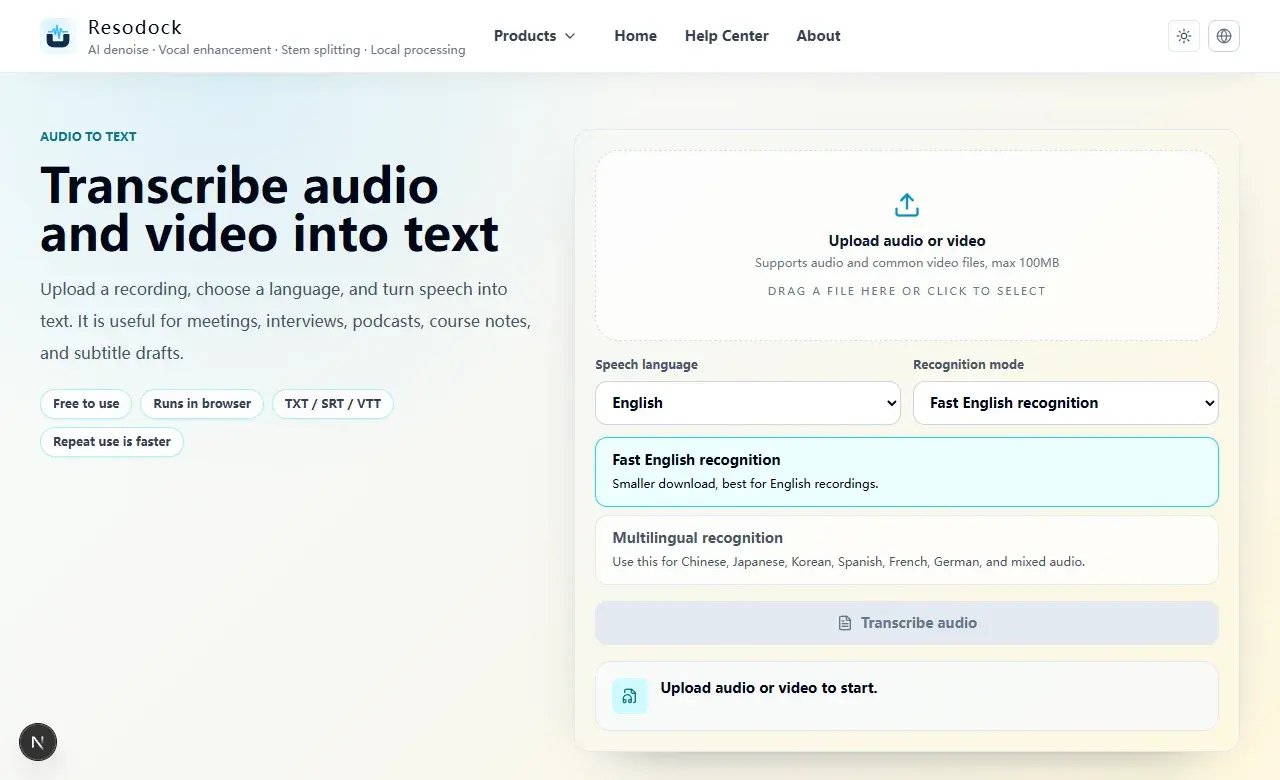
Run a short test in the audio to text tool
Automatic transcription works best when you test a sample first. Upload 15 to 30 seconds, check the language and clarity, then process the full file.
- 1Open the matching audio to text page.
- 2Click the upload area or drag in an audio or video file.
- 3Choose the speech language and recognition mode, then start transcription.
- 4Review the transcript, then copy text or download TXT, SRT, or VTT.
When free speech to text makes sense
Short meetings, interview clips, class recordings, voice memos, and video dialogue are good places to start. You do not need a perfect transcript on the first pass. You need editable text that gets you moving.
For contracts, medical content, legal material, or financial records, a free tool can still create a draft, but it should not replace review. Automatic recognition can misunderstand names, numbers, and technical terms.
A simple workflow to try
Open the speech to text free page, upload a short audio or video file, choose the speech language, and start transcription. The first run may download recognition files; later runs on the same device are usually faster.
After transcription, read the text before exporting. Use TXT for notes and SRT or VTT for subtitles. If the source recording is noisy, denoise a short sample first and compare the text quality.
Do not choose by price alone
Free matters, but it is not the only thing. Look for language support, export options, clear first-run download behavior, and a workflow that works in your browser.
For everyday users, the best free speech to text tool should feel simple: upload, choose language, transcribe, copy, or download. Advanced settings can exist, but they should not block the main task.
Summary
The value of speech to text free is speed. It helps you create an editable draft without manually replaying the recording from the beginning.
Test a short clip first, check language and accuracy, then process the full file. Review names, numbers, dates, and technical terms before relying on the transcript.
Related Articles
Audio to Text
Audio to Text Online: A Simple Guide to Turning Recordings Into Text
Audio to text is not magic, but it is a fast way to turn recordings into editable drafts. Test a short clip, then export TXT, SRT, or VTT.
Audio to Text
How to Transcribe Audio Online for Meetings, Interviews, and Podcasts
Before you transcribe a full recording, test 30 seconds. Check language and clarity, then export text or subtitles.
Audio to Text
Audio Transcription AI for Meeting Notes: What It Can and Cannot Do
AI transcription is great for creating a meeting draft. You still need to verify decisions, tasks, names, numbers, and dates.
FAQ
Does free speech to text have limits?
Usually yes. File size, browser performance, and first-run downloads can matter. Resodock is currently best for files under 100MB.
Can speech to text free export subtitles?
Yes. You can download SRT or VTT as subtitle drafts, then review timing and line breaks before publishing.
Can I use it on mobile?
You can try the main workflow, but long recordings and large videos are usually better on a desktop browser.