Remove Background Noise From Video Online: Extract Audio, Clean It, and Export
When a video has wind, fan noise, keyboard clicks, or meeting echo, extract the audio first, clean the sound, then use it for editing, transcription, or subtitles.
Video Audio Noise Removal
Remove background noise from video by cleaning the audio track first
Upload a video, extract its audio track in the browser, then remove background noise with AI denoise. Export the cleaned audio for editing, subtitles, or transcription.
When video noise cleanup helps
If the picture is usable but the sound is covered by wind, fans, traffic, keyboard clicks, or meeting echo, start with the audio. This is common in phone videos, online meetings, course recordings, outdoor interviews, and product demos.
You do not always need to rebuild the video. In many cases, the practical workflow is to extract the audio, clean or enhance the sound, then use the result for editing, transcription, or subtitles.
Clean video sound
Upload a video and clean its audio track
Video noise cleanup is easier when you work in stages. Upload the video, let the browser extract the audio track, then test a short AI denoise pass before processing the full file.
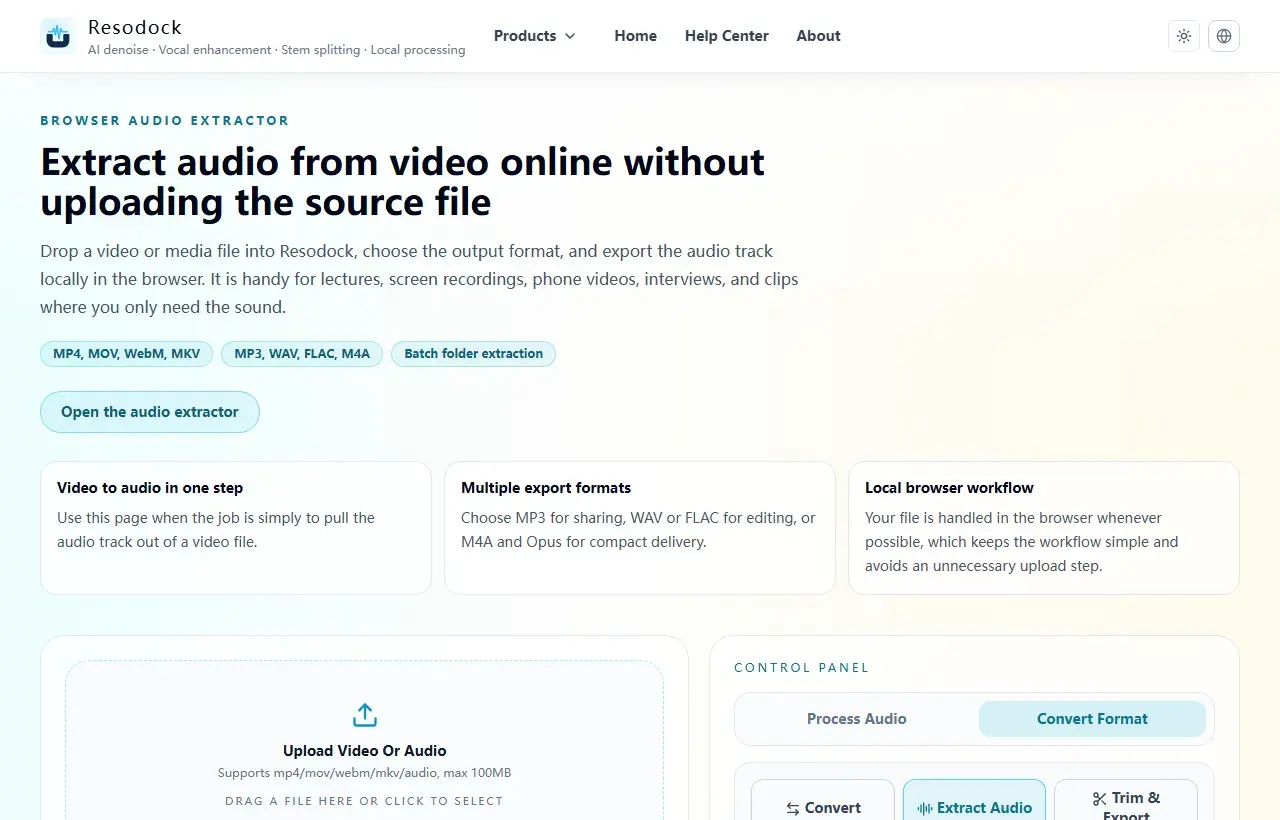
- 1Open the video noise remover and upload MP4, MOV, WebM, or MKV.
- 2Wait while the browser extracts the audio track.
- 3Keep AI denoise selected and process a 15 to 30 second sample first.
- 4Compare before and after. If speech still sounds natural, process the full audio.
- 5If you need captions, continue with video to text or MP4 to SRT.
How to remove background noise from video online
Start with the extract audio from video tool. Upload MP4, MOV, WebM, or MKV, then export the video's sound as an audio file. This lets you judge the sound without processing the whole video each time.
Next, open the online audio noise remover and process 15 to 30 seconds first. If the background noise drops and the voice does not sound dull or metallic, process the full audio.
When to add voice enhancement
Noise removal lowers background sound. Voice enhancement focuses on speech clarity. If a screen recording is quiet, the speaker is far from the mic, or the meeting audio sounds muffled, use the voice enhancer lightly after denoise.
Avoid reversing the order. If you enhance first, you may make the noise louder too. Lower obvious noise first, then add a small clarity boost.
Where video audio cleanup has limits
Severe clipping, repeated compression, overlapping speakers, and strong wind hitting the microphone are hard cases. AI denoise can reduce distraction, but it cannot turn damaged audio into a studio recording.
For contracts, medical content, legal material, financial decisions, or public release, keep the original file and listen through important sections before using the cleaned version.
Use cleaned audio for transcription or subtitles
After cleanup, send the audio to video to text for a transcript or MP4 to SRT for subtitle drafts. Clearer speech often helps recognition, but automatic text still needs review.
Before publishing captions, check names, numbers, dates, technical words, timing, and line breaks. Cleaner audio reduces rework; it does not replace the final human pass.
Summary
To remove background noise from video online, start by separating the sound from the picture. Extract the audio, test a short denoise pass, add light voice enhancement only if needed, then continue to editing or subtitles.
Listen to a short sample at every step. When speech is clearer, noise is lower, and the voice still sounds natural, process the full video audio.
Related Articles
Noise Removal
How To Remove Background Noise From Audio Online Without Uploading Files
This guide tells you when to use AI denoise, when fast mode is enough, and how to download the result.
Noise Removal
How To Fix Echo And Reverb In Zoom Recordings
This guide is optimized for meeting speech: clearer voices without over-processing artifacts.
Noise Removal
How To Clean Up Interview Audio Quickly
When delivery time is tight, this workflow boosts clarity with minimal tuning overhead.
FAQ
Can Resodock remove background noise from the video file directly?
The current workflow is to extract the audio first, then denoise or enhance the audio. This makes the result easier to preview and control.
Can I put the cleaned audio back into the video?
Resodock is currently better suited for exporting cleaned audio, transcripts, or subtitle drafts. To replace the track, import the cleaned audio into a video editor.
Will video noise cleanup improve subtitles?
Light denoise often helps, but heavy processing can distort speech. Test a short sample and compare the transcript before processing the full file.