How To Fix Echo And Reverb In Zoom Recordings
A practical cleanup workflow for online meeting recordings with echo, room tone, and muddy speech.
Browser Echo Cleanup
Remove echo from audio online and make speech easier to follow
Remove echo and room reverb from speech audio online. Use Resodock to test a short clip, improve voice clarity, and export cleaner meeting, podcast, or video sound.
Identify the dominant issue first
Meeting audio usually mixes steady noise, room reverb, and speaker bleed. Identify the primary problem before adjusting settings.
If echo dominates, reduce enhancement intensity first and prioritize denoise before boosting highs.
Try the workflow
Clean a Zoom recording in Resodock
If the recording has air-conditioner hum, room echo, or dull speech, start with a short AI denoise preview. I usually test about 30 seconds first, then process the full file only when the comparison sounds natural.
- 1Open the online audio noise remover; it loads the denoise workstation for this workflow.
- 2Click the upload area on the left, or drag your Zoom recording into it.
- 3Keep AI denoise selected in the processing panel, then click the processing button.
- 4Listen to the before-and-after result. If the noise is lower but the voice still feels muffled, add light voice enhancement afterward.
- 5Download the cleaned file and keep the original recording as a backup.
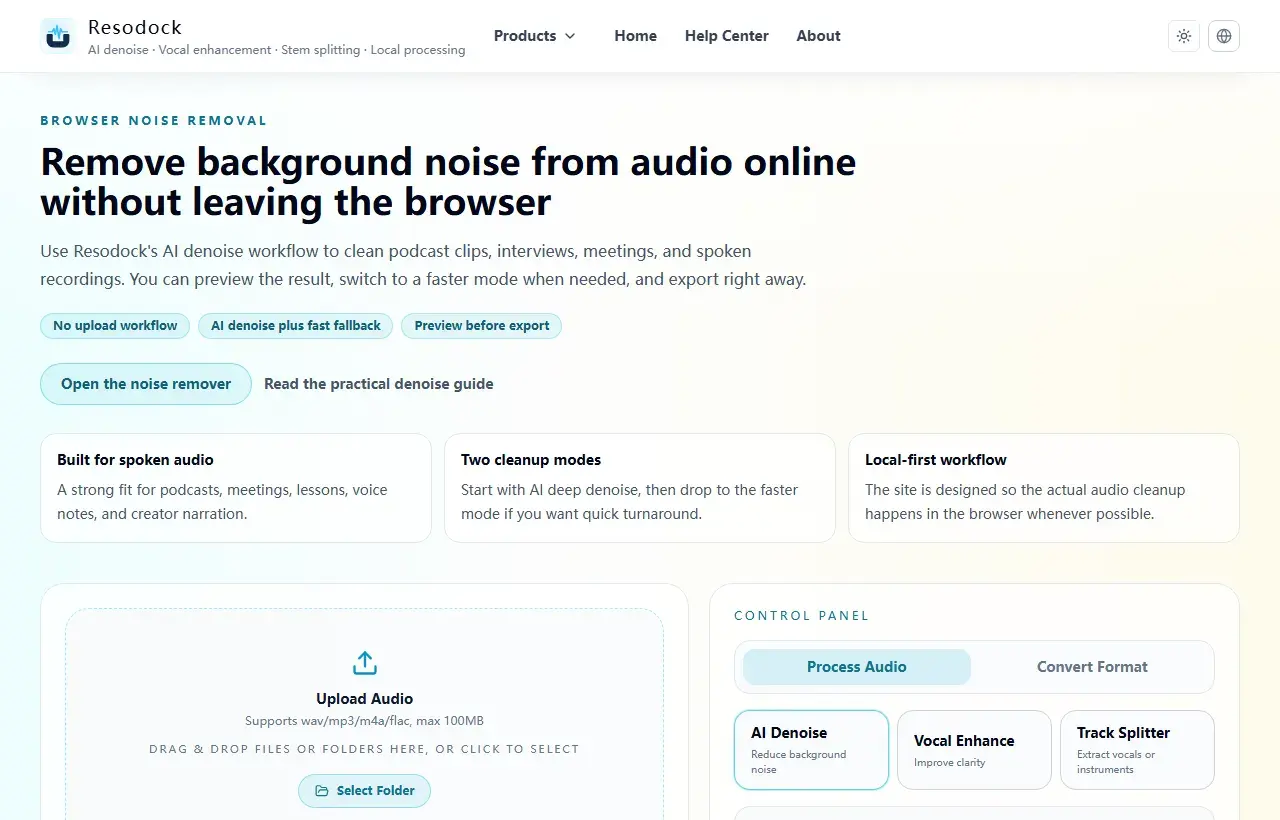
Recommended processing order
Start with AI denoise only, instead of stacking every process at once. After the first pass, preview the noisiest 15-30 seconds and listen for two things: whether the background drops and whether the voice becomes thin or metallic.
If the voice is already clear enough, download the result. If the noise is lower but the speech still feels muffled, distant, or unstable, add light voice enhancement afterward. This usually keeps the voice more natural than turning on denoise and enhancement together from the start.
Summary
When cleaning a Zoom recording, do not push every setting to the maximum. First listen for the main problem: steady background noise, room echo, or dull speech.
If the issue is mostly a noise floor, start with the online meeting audio cleanup workflow. If echo or muffled speech is more obvious, add light voice enhancement after denoise. That usually keeps the voice more natural for review, transcription, and editing.
Related Articles
Noise Removal
Remove Background Noise From Video Online: Extract Audio, Clean It, and Export
Video noise cleanup usually starts by pulling out the sound. Test 15 to 30 seconds first, make sure the voice still sounds natural, then process the full clip.
Noise Removal
How To Remove Background Noise From Audio Online Without Uploading Files
This guide tells you when to use AI denoise, when fast mode is enough, and how to download the result.
Noise Removal
How To Clean Up Interview Audio Quickly
When delivery time is tight, this workflow boosts clarity with minimal tuning overhead.
FAQ
What should I do first for heavy meeting echo?
Start with denoise at moderate strength, then add only light voice enhancement if needed.
Why does processed speech sound metallic?
Usually because processing is too aggressive. Use lighter, staged processing with short preview loops.