MP4 To SRT Online: Create Subtitle Drafts From Video
Need SRT subtitles from an MP4 video? This guide explains when MP4 to SRT works, how to create a draft, which export to use, and what to review before publishing.
MP4 to SRT
Turn MP4 video into SRT subtitle drafts
Upload MP4 or common video files, choose the speech language, then export editable SRT, TXT, or VTT.
When MP4 to SRT works well
MP4 to SRT works best when the video has clear speech. It is useful for course videos, product demos, interviews, screen recordings, YouTube clips, and social videos.
Think of it as a subtitle draft, not a human captioning service. The tool creates timed text that you can edit and check before publishing.
Try it now
Run a short test in the audio to text tool
Automatic transcription works best when you test a sample first. Upload 15 to 30 seconds, check the language and clarity, then process the full file.
- 1Open the matching audio to text page.
- 2Click the upload area or drag in an audio or video file.
- 3Choose the speech language and recognition mode, then start transcription.
- 4Review the transcript, then copy text or download TXT, SRT, or VTT.
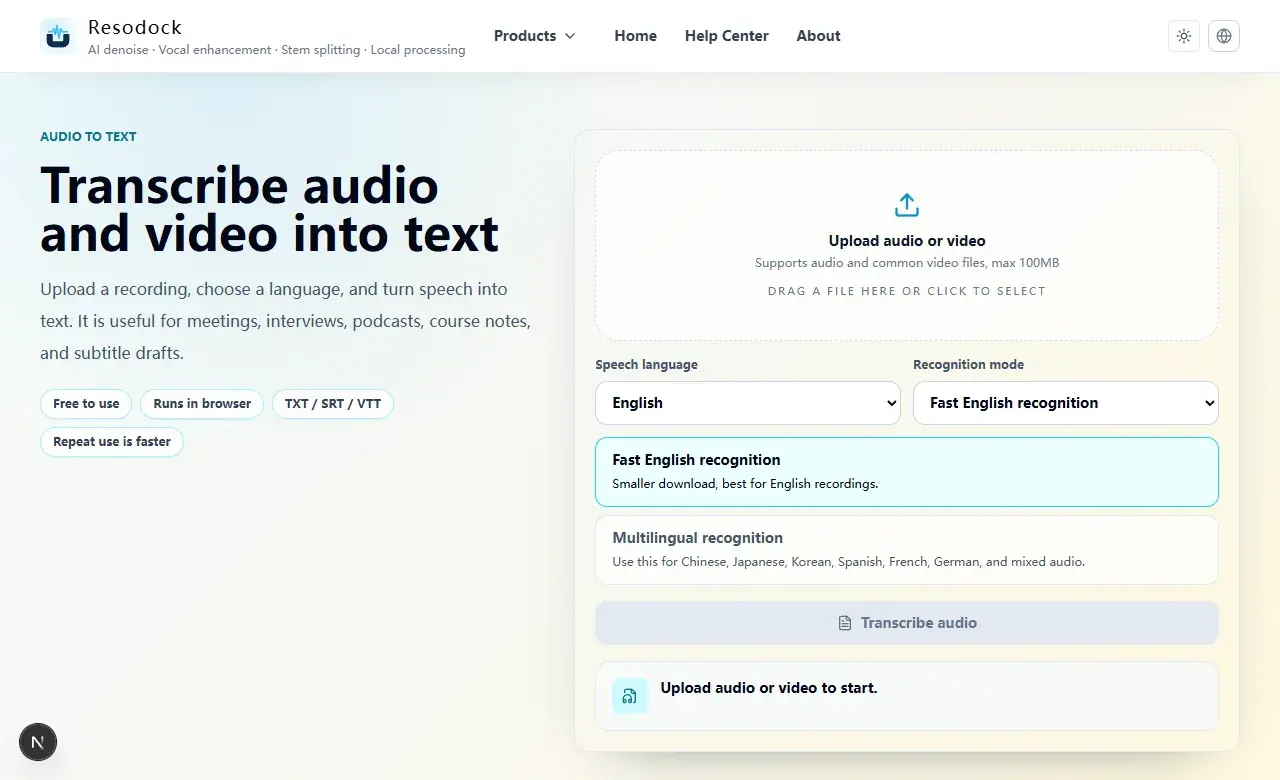
How to convert MP4 to SRT online
Open the MP4 to SRT tool, upload an MP4 or common video file, choose the spoken language, and start transcription. The page reads the audio track before creating text.
When the result is ready, download SRT. Save TXT if you also need notes or article copy. Use VTT for web captions.
SRT, TXT, or VTT
SRT works with many video editors and caption platforms. TXT is plain text for notes and editing. VTT is common for captions on web video players.
If you are adding subtitles to a video, start with SRT. Keep a TXT copy when you plan to rewrite the transcript later.
Where automatic subtitles struggle
Background music, distant speech, overlapping speakers, strong accents, and low screen-recording volume can reduce accuracy. Long videos and large files also take more time in the browser.
The first run may need to download recognition files. Later runs on the same device are usually faster because the browser can reuse cached resources.
What to check before publishing
Automatic SRT files need review. Check names, brand terms, numbers, dates, technical words, and legal, medical, or financial content.
Also check timing, sentence cuts, and line breaks. A correct transcript can still make awkward subtitles if the timing is off.
Summary
MP4 to SRT is useful when you need an editable subtitle draft from a video. It fits classes, interviews, demos, tutorials, and short clips.
Test a short section first, then process the full video. After export, review text, timing, and line breaks before publishing.
Related Articles
Audio to Text
Audio to Text Online: A Simple Guide to Turning Recordings Into Text
Audio to text is not magic, but it is a fast way to turn recordings into editable drafts. Test a short clip, then export TXT, SRT, or VTT.
Audio to Text
How to Transcribe Audio Online for Meetings, Interviews, and Podcasts
Before you transcribe a full recording, test 30 seconds. Check language and clarity, then export text or subtitles.
Audio to Text
Audio Transcription AI for Meeting Notes: What It Can and Cannot Do
AI transcription is great for creating a meeting draft. You still need to verify decisions, tasks, names, numbers, and dates.
FAQ
Does MP4 to SRT upload my video to a server?
The workflow is designed for browser processing. The page reads the audio track in the browser before creating the subtitle draft.
How large can the video be?
The current workflow is best for files under 100MB. For longer videos, trim the useful section first.
Can it create non-English subtitles?
Yes. Choose the spoken language, then review the automatic subtitle draft carefully before publishing.