How To Convert WAV To MP3 In The Browser Without Uploading Files
Use this guide to convert WAV, MP3, FLAC, and M4A locally with a good balance of quality, size, and privacy.
Browser Audio Converter
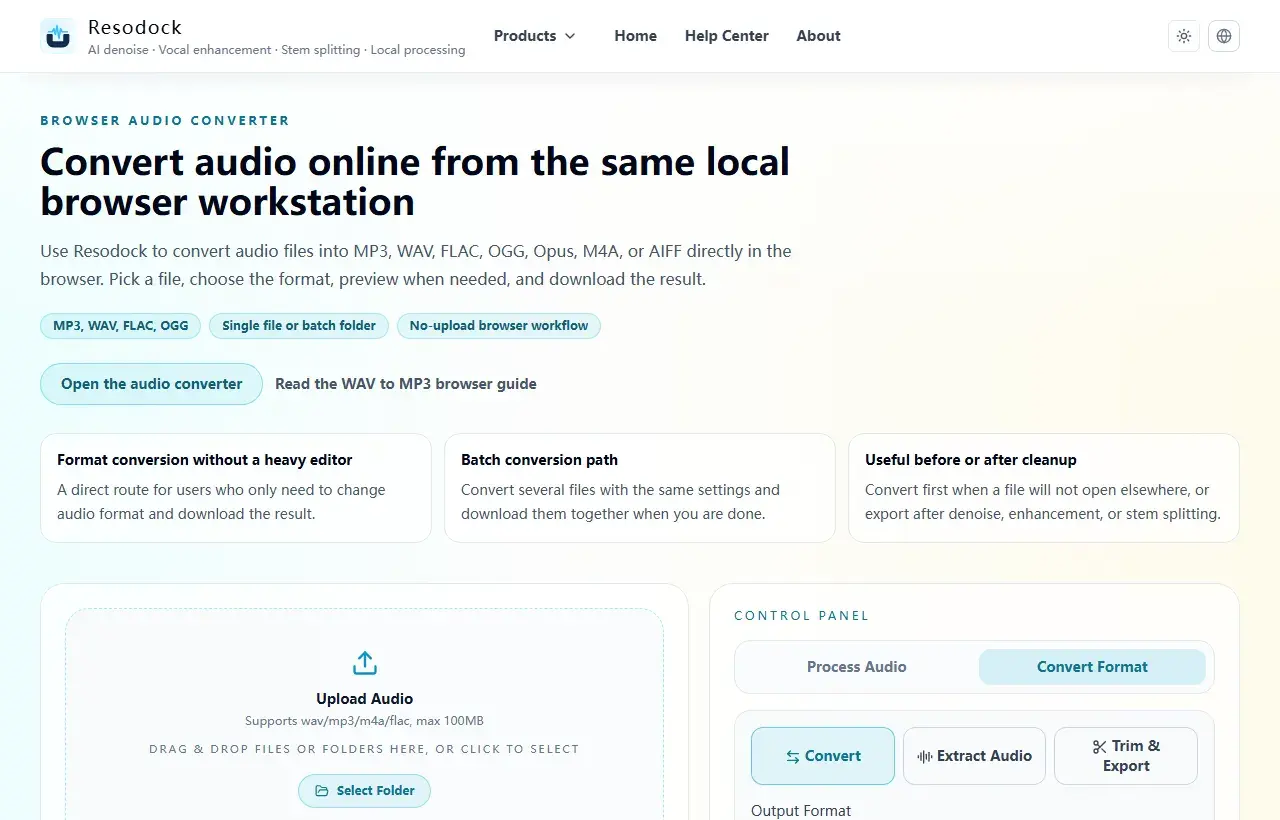
Convert audio online from the same local browser workstation
Convert audio files online in the browser. Export MP3, WAV, FLAC, OGG, Opus, M4A, or AIFF, with single-file and batch workflows that avoid uploading your audio.
When to convert format first
If you hit device incompatibility, oversized files, or platform format limits, converting format first is often the fastest fix.
You can convert before or after processing: convert first for compatibility, or process first then convert to preserve more quality.
Convert format
Convert audio into the format you need
When the article is about MP3, WAV, FLAC, M4A, size, or compatibility, you can convert the file directly in the browser.
- 1Open the audio converter.
- 2Upload the audio file.
- 3Choose the target format, such as MP3, WAV, FLAC, or M4A.
- 4Convert the file and download the result.
Most important conversion decisions
The key decisions are supported formats, whether upload is required, how downloads work, and how each format trades off file size vs audio quality.
If you are unsure, a common rule is WAV/FLAC for quality-first, MP3/M4A for size-first workflows.
What to do after conversion
After conversion, common next steps are batch processing, stem separation, or denoise. Standardizing formats for your target platform makes later steps smoother.
Since these needs are stable over time, keeping fixed presets for common outputs saves significant time in repeated workflows.
Summary
There is no single best audio format. MP3 and M4A work well for sharing and everyday playback, while WAV and FLAC are better for editing and cleanup.
Convert a short sample first to check quality, size, and compatibility. Then export the full file or batch once the settings make sense.
Related Articles
Format Conversion
Online Audio Converter Guide: MP3, WAV, FLAC, and M4A Made Simple
Not sure whether to choose MP3 or WAV? Start with the use case: sharing, editing, archiving, or batch conversion.
Format Conversion
How To Extract Audio From Video: MP4 to MP3, Screen Recordings, and Clips
Extracting the audio track is useful for replaying lessons, organizing interviews, preparing subtitles, and reusing editing material.
Format Conversion
Trim Audio Online Free: A Simple Way to Cut Audio in Your Browser
Online audio trimming does not need a full editor. Upload the file, choose start and end times, preview the clip, and export.
FAQ
When is WAV to MP3 the right choice?
It is ideal when you need smaller files, broad compatibility, and faster sharing. If you still need deep editing later, keep a WAV or FLAC master first.