Online Audio Converter Guide: MP3, WAV, FLAC, and M4A Made Simple
When converting audio to MP3, WAV, FLAC, or M4A, the best format depends on what you want to do next. This guide keeps the choices simple.
Browser Audio Converter
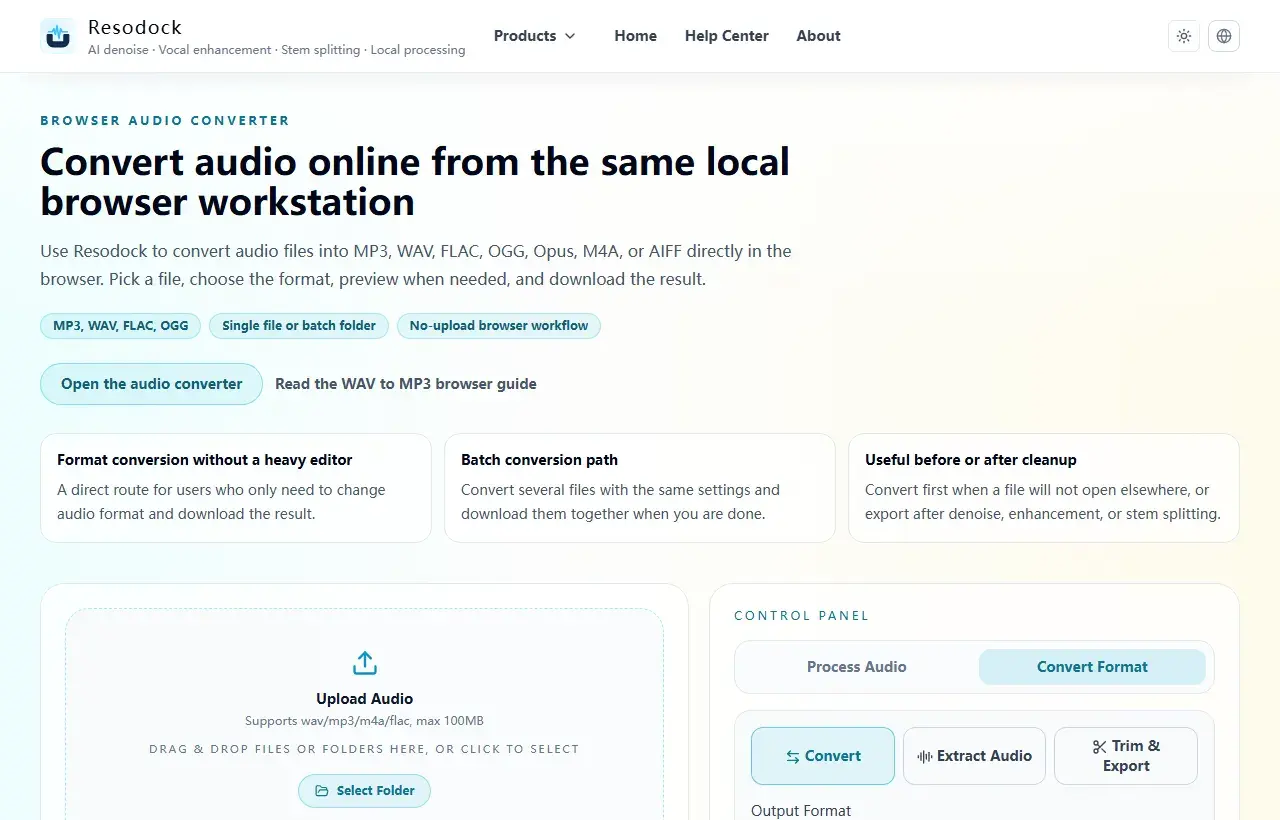
Convert audio online from the same local browser workstation
Convert audio files online in the browser. Export MP3, WAV, FLAC, OGG, Opus, M4A, or AIFF, with single-file and batch workflows that avoid uploading your audio.
Start with what the audio is for
Audio conversion is easy; choosing the right format is the part that matters. I usually start with one question: is this file for sharing, editing, or keeping long term?
If you only need to send the audio to someone, MP3 is usually the easiest choice. If you plan to edit, denoise, or enhance the voice later, WAV or FLAC is safer. For phones, web playback, and chat apps, M4A and Opus can also work well. You can start with the online audio converter.
Convert format
Convert audio into the format you need
When the article is about MP3, WAV, FLAC, M4A, size, or compatibility, you can convert the file directly in the browser.
- 1Open the audio converter.
- 2Upload the audio file.
- 3Choose the target format, such as MP3, WAV, FLAC, or M4A.
- 4Convert the file and download the result.
How to choose MP3, WAV, FLAC, or M4A
MP3 is small and widely supported, which makes it good for sharing, quick previews, and everyday listening. When people search for audio converter online or audio to MP3 converter, they often just need a lighter file that is easier to send.
WAV is better when the file still needs editing because it keeps more detail. FLAC is useful when quality matters but you still want a smaller file than WAV. M4A is common on phones and websites. Simple rule: MP3 for sharing, WAV for editing, FLAC for archiving, M4A for mobile-friendly playback.
For batch conversion, test one file first
When converting many files, try one or two samples before exporting everything. Check loudness, sample rate, naming, and the target format first. It is much easier to fix one file than a whole ZIP.
For course recordings, interviews, or voice archives, MP3 is good for quick sorting. If the files still need editing, keep WAV or FLAC. A batch audio converter is most useful when every exported file is predictable, not just fast.
Summary
The point of audio conversion is not to collect formats. It is to make the file fit the next step. MP3 keeps things light, WAV supports editing, FLAC is good for storage, and M4A fits many mobile playback needs.
Pick the use case first, choose the format second, then listen to a short sample before exporting the full batch.
Related Articles
Format Conversion
How To Extract Audio From Video: MP4 to MP3, Screen Recordings, and Clips
Extracting the audio track is useful for replaying lessons, organizing interviews, preparing subtitles, and reusing editing material.
Format Conversion
Trim Audio Online Free: A Simple Way to Cut Audio in Your Browser
Online audio trimming does not need a full editor. Upload the file, choose start and end times, preview the clip, and export.
Format Conversion
How To Cut MP3 Files For Ringtones, Clips, and Voice Notes
Cutting MP3 well is about natural edges: leave small margins, preview before export, then choose MP3 for sharing or WAV for further editing.
FAQ
Which formats can the online audio converter export?
Resodock supports MP3, WAV, FLAC, OGG, Opus, M4A, and AIFF. You can choose the target format in the online audio converter.
Does WAV to MP3 reduce quality?
Yes, MP3 uses compression, but it is usually fine for sharing and everyday playback. Keep WAV or FLAC if you still need to edit the audio.
Can I convert multiple audio files at once?
Yes. Select several files or a folder, choose the target format, then export the processed results together.