How To Extract Audio From Video: MP4 to MP3, Screen Recordings, and Clips
Some videos are useful mainly because of their audio. This guide explains when to extract audio, how to choose MP3 or WAV, and what to do after extraction.
Browser Audio Extractor
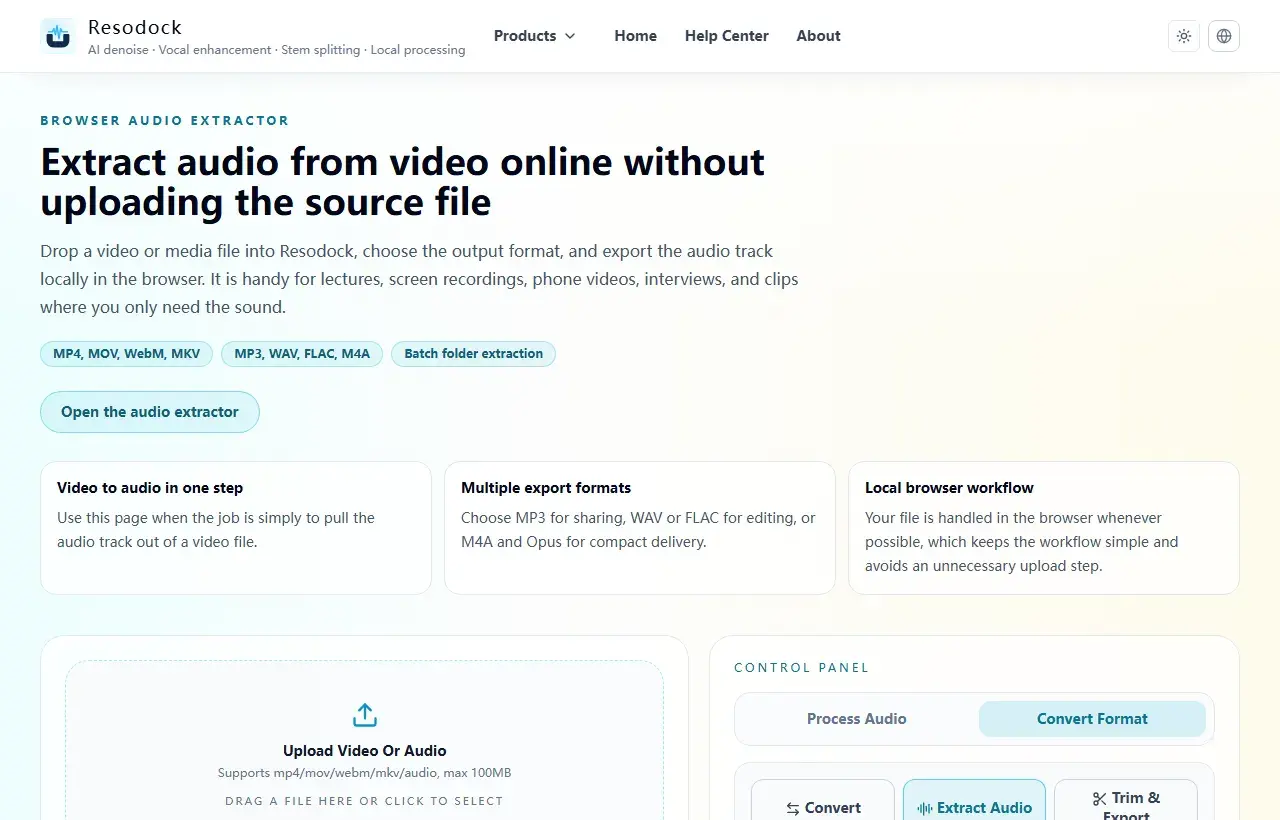
Extract audio from video online without uploading the source file
Extract audio from MP4, MOV, WebM, MKV, and other media files directly in your browser. Export MP3, WAV, FLAC, M4A, OGG, Opus, or AIFF without uploading your file.
When audio is all you need
Some videos do not need to be watched again and again. The useful part is the sound: a class recording, a meeting video, an interview, a podcast clip, or a quick phone video with an idea inside.
Extracting the audio makes the file smaller, easier to replay, and easier to clean, transcribe, or edit. You can start with the extract audio from video tool.
Extract audio
Pull the sound out of a video first
For lessons, meeting recordings, interviews, or short videos, extracting audio first makes cleanup, transcription, and editing easier.
- 1Open the video to audio tool.
- 2Upload an MP4, MOV, or WebM video.
- 3Start audio extraction.
- 4Download the audio file, then denoise or convert it if needed.
Choose MP3, WAV, or M4A
If you want a video to become an easy listening file, video to MP3 is usually the simplest choice. MP3 is small, compatible, and good for lessons, meeting notes, and quick sharing.
If the extracted audio still needs editing, denoise, or voice enhancement, WAV is the better choice. M4A is useful for mobile playback and light storage. In short: MP3 for listening and sharing, WAV for production, M4A for mobile-friendly saving.
Clean up the audio after extraction
After extracting audio from MP4, MOV, or WebM, listen to the beginning, middle, and end. Check for empty space, uneven loudness, heavy background noise, or speech buried under music.
If the format is not right, continue with the online audio converter and export MP3, WAV, FLAC, or M4A. That keeps the workflow simple: video file in, usable audio file out.
Summary
Extracting audio from video is useful whenever the picture matters less than the sound. Lessons, meetings, interviews, and screen recordings are common examples.
Extract first, choose MP3, WAV, or M4A based on the next step, then listen to a short sample before keeping or sharing the file.
Related Articles
Format Conversion
Online Audio Converter Guide: MP3, WAV, FLAC, and M4A Made Simple
Not sure whether to choose MP3 or WAV? Start with the use case: sharing, editing, archiving, or batch conversion.
Format Conversion
Trim Audio Online Free: A Simple Way to Cut Audio in Your Browser
Online audio trimming does not need a full editor. Upload the file, choose start and end times, preview the clip, and export.
Format Conversion
How To Cut MP3 Files For Ringtones, Clips, and Voice Notes
Cutting MP3 well is about natural edges: leave small margins, preview before export, then choose MP3 for sharing or WAV for further editing.
FAQ
Which video formats can I extract audio from?
Common files such as MP4, MOV, WebM, and MKV are good places to start. Import the file in the extract audio from video tool and choose the export format.
What is the difference between video to MP3 and keeping WAV?
MP3 is smaller and better for listening or sharing. WAV is larger, but better when you plan to edit, denoise, or enhance the voice afterward.
Can I convert the extracted audio again?
Yes. After extraction, use the online audio converter if you need MP3, WAV, FLAC, or M4A.